
Add SSH keys to your account and your VPS
Checked against the client area 29 October 2026
With an SSH key you log in to your Linux server without a password. You save the public key to your account once. Then you add it to the servers that should have it. A key that is only saved to your account gives no access to any server.
Open SSH keys in the client area
If the key should go on several servers, Hostup’s MCP server in Claude, ChatGPT or Codex is faster. You say what you want done:
How to
Section titled “How to”- Click SSH Keys in the menu.
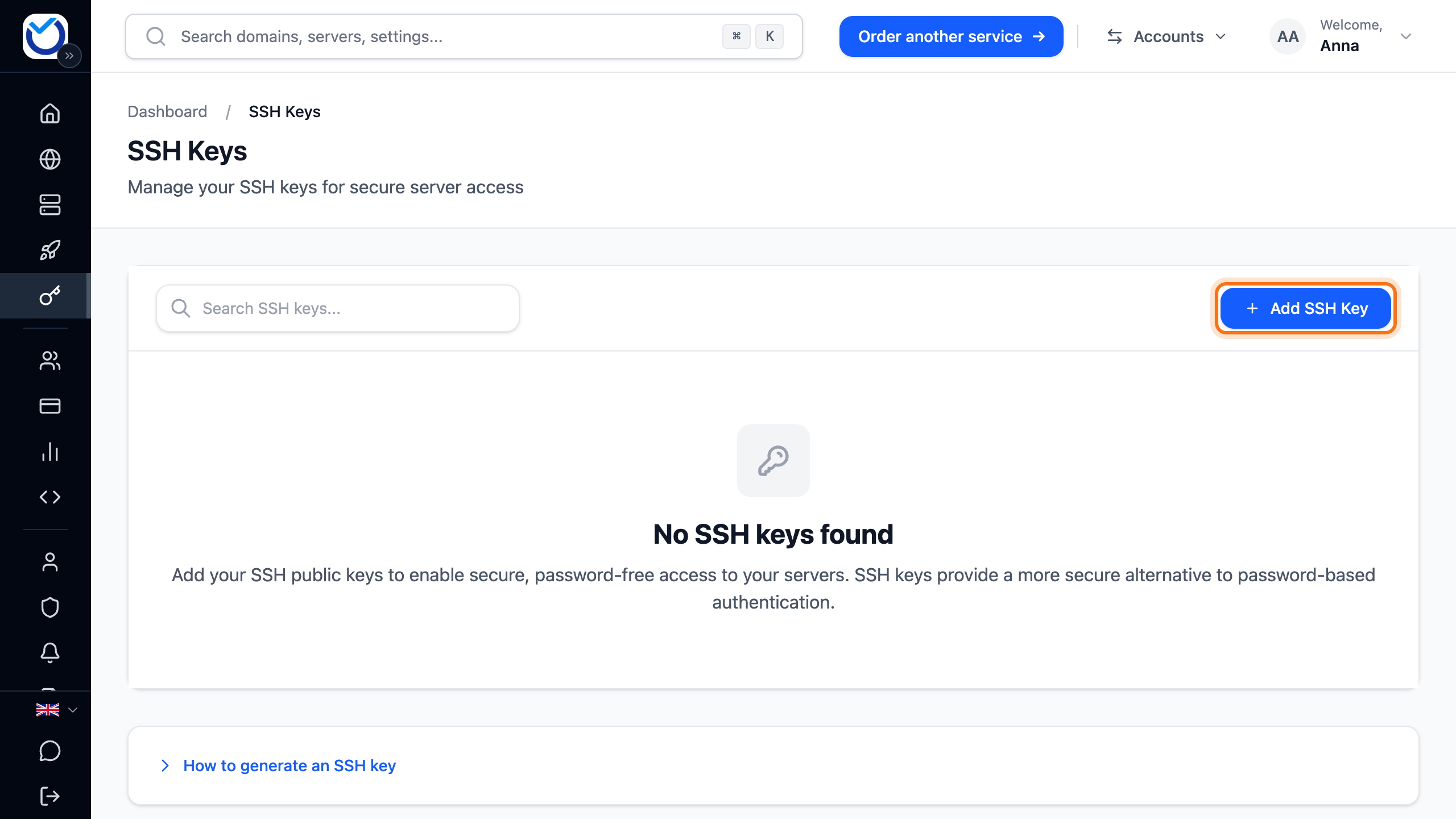
- Click Add SSH Key. On a phone, it is the round plus button at the bottom right.
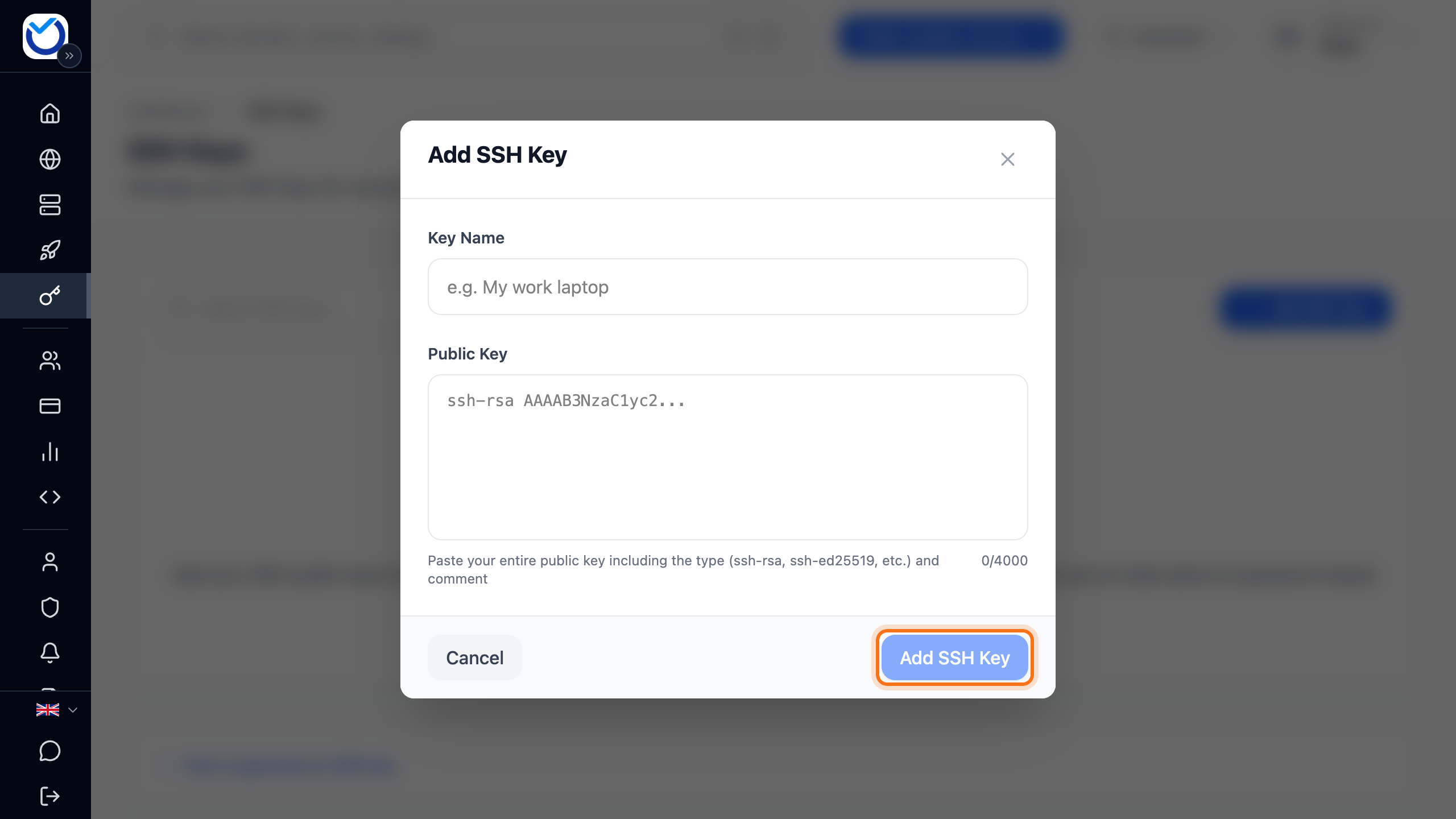
- Enter a name under Key Name, for example the name of your computer.
- Paste the public key under Public Key. It is the content of the file ending in .pub. Include the whole line, from the type (for example ssh-ed25519) to the comment at the end, if there is one. Never paste the private key.
- Click Add SSH Key at the bottom of the dialog.
If you don’t have a key yet, How to generate an SSH key at the bottom of the page shows how to create one.
The key must be a public key in OpenSSH format, for example ssh-ed25519, ssh-rsa or ecdsa. The same key can only be saved once on the account.
Add the key to a server
Section titled “Add the key to a server”Open your servers in the client area
- Open the server and go to the Settings tab.
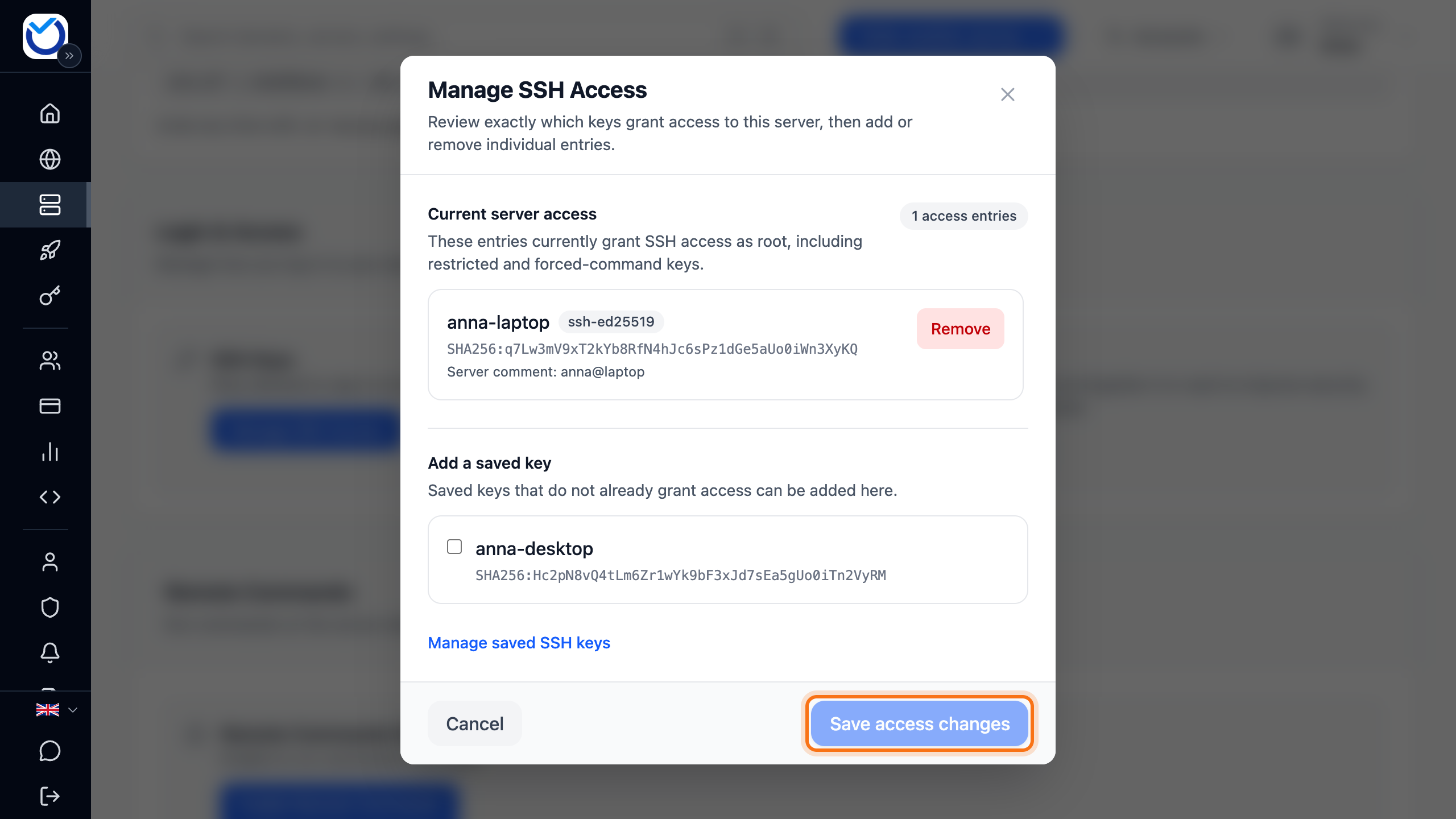
- Under Login & Access, click Manage SSH Access in the SSH Keys box.
- Current server access lists the keys that give access to the server right now.
- Under Add a saved key, tick the key you want to add. It lists the saved keys that are not on the server yet.
- Click Save access changes.
The key is added straight away and the server does not restart. The dialog closes once the change is made and checked on the server.
If the server is stopped, the dialog says so. Tick the key and click Start server and add selected keys. The server starts and the key is added once it is running. Keys already on the server are not removed.
Remove a key
Section titled “Remove a key”From a server:
- Open Manage SSH Access as above.
- Click Remove next to the key. If you change your mind, click Keep.
- Click Save access changes.
If you remove every key, you first have to tick the box that confirms it. SSH key login then stops working. Make sure you can log in with a password or in the console before you save.
From your account: click the three-dot menu (Actions) on the key’s row and choose Delete key. On a phone, tap the bin icon. Confirm with Delete Key. The key stays on the servers it is already on. Remove it there too if it should no longer give access.
Good to know
Section titled “Good to know”- You can also choose keys when you order a new VPS. When you reinstall a server, you choose whether the keys stay. See Reinstall your VPS with a new operating system.
- You can also open Manage SSH Access from the Overview tab. Click the pencil on the SSH keys row in the Quick Connect box.
- The client area reads and changes the keys through the guest agent inside the server (QEMU Guest Agent). If it doesn’t answer, you see Current SSH access is unavailable. The keys can’t be changed from here then.
- SSH keys only apply to Linux. A Windows server has no Manage SSH Access.