
Restore a backup of your VPS
Checked against the client area 29 October 2026
You can restore a backup in three ways: to the same server, from another of your servers, or to a brand new server. The first two overwrite everything on the server’s disk. The third leaves the current server untouched.
Open your servers in the client area
Before you start
Section titled “Before you start”Only need a few files from a backup? Restore it to a new server and copy the files from there. Nothing gets overwritten that way.
If you want to be able to go back to the server as it is now, take a new backup first. How to do that is described in VPS backups.
How to
Section titled “How to”This is how you restore a backup to the server it was taken from.
- Open the server in the client area and go to the Backups tab.
- Find the backup in the list. Created shows when it was taken.
- Click Restore on its row.
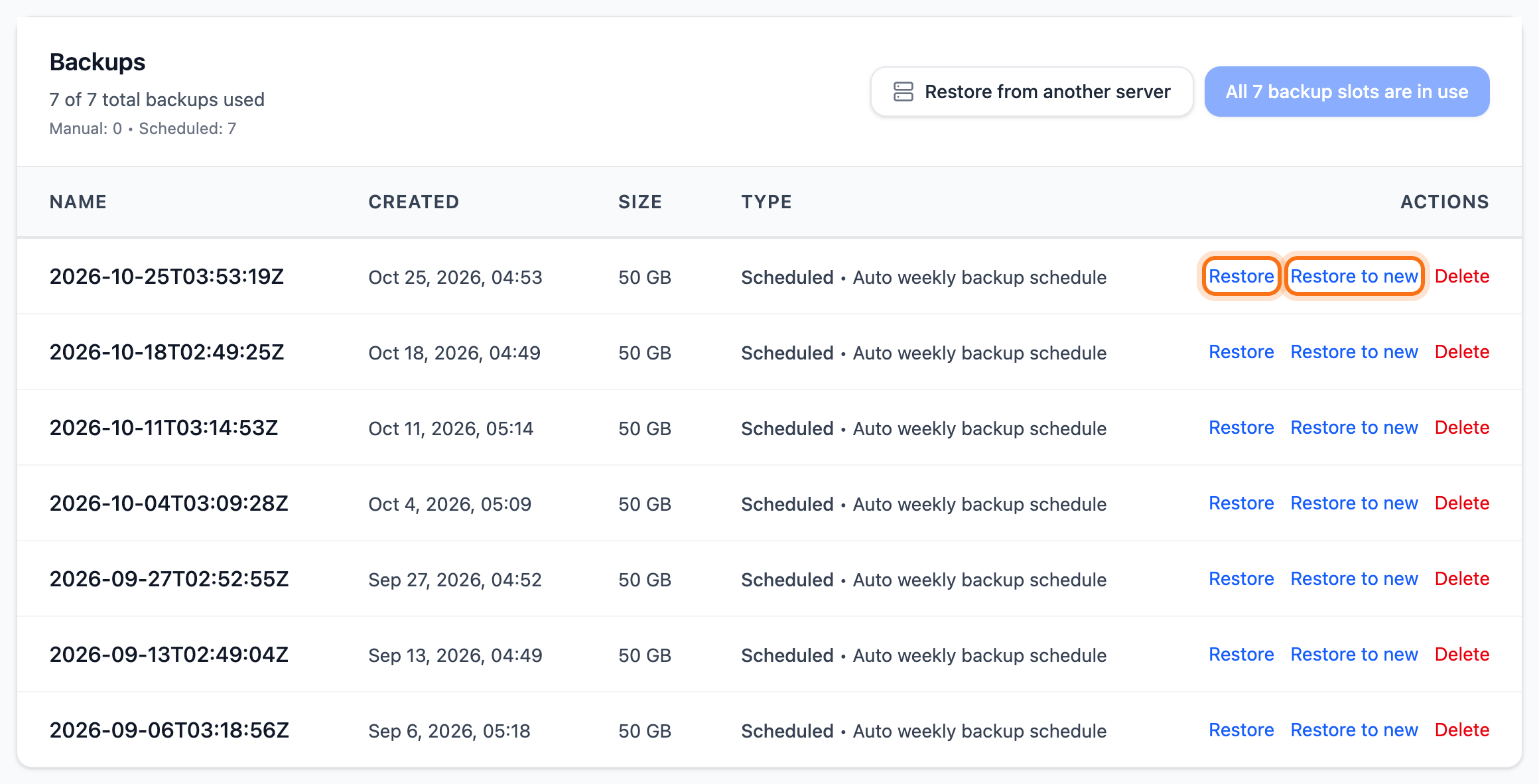
- Your browser asks twice whether you want to continue. Click OK both times.
What happens next
Section titled “What happens next”The tab shows Backup restore in progress. The server is stopped while the disk is restored. Progress shows in the Restoring backup box at the bottom of the page. When the restore is done, the server starts again by itself.
The server keeps the same IP addresses. The files and programs on the disk are as they were when the backup was taken. The backups in the list are still there.
Restore another server’s backup
Section titled “Restore another server’s backup”You can put a backup from one of your other servers onto this server, for example when you move to a new server.
-
Open the server that will be overwritten and go to the Backups tab.
-
Click Restore from another server.
-
Under Source server, pick the server the backup comes from. Then pick the backup under Backup.
-
If the backup needs a bigger disk than the server has, the dialog says so.
- On a pay-as-you-go VPS it says Storage will be grown when your account’s storage allowance is enough. The storage is grown as part of the restore. The dialog shows what that costs.
- If the storage cannot be grown, it says This server is too small for the backup and explains why. On a regular VPS the storage is set by the plan. Pick a server with a bigger disk or restore to a new server instead.
-
Tick I understand this will replace all data on the target server.. Type the server’s name in the field below.
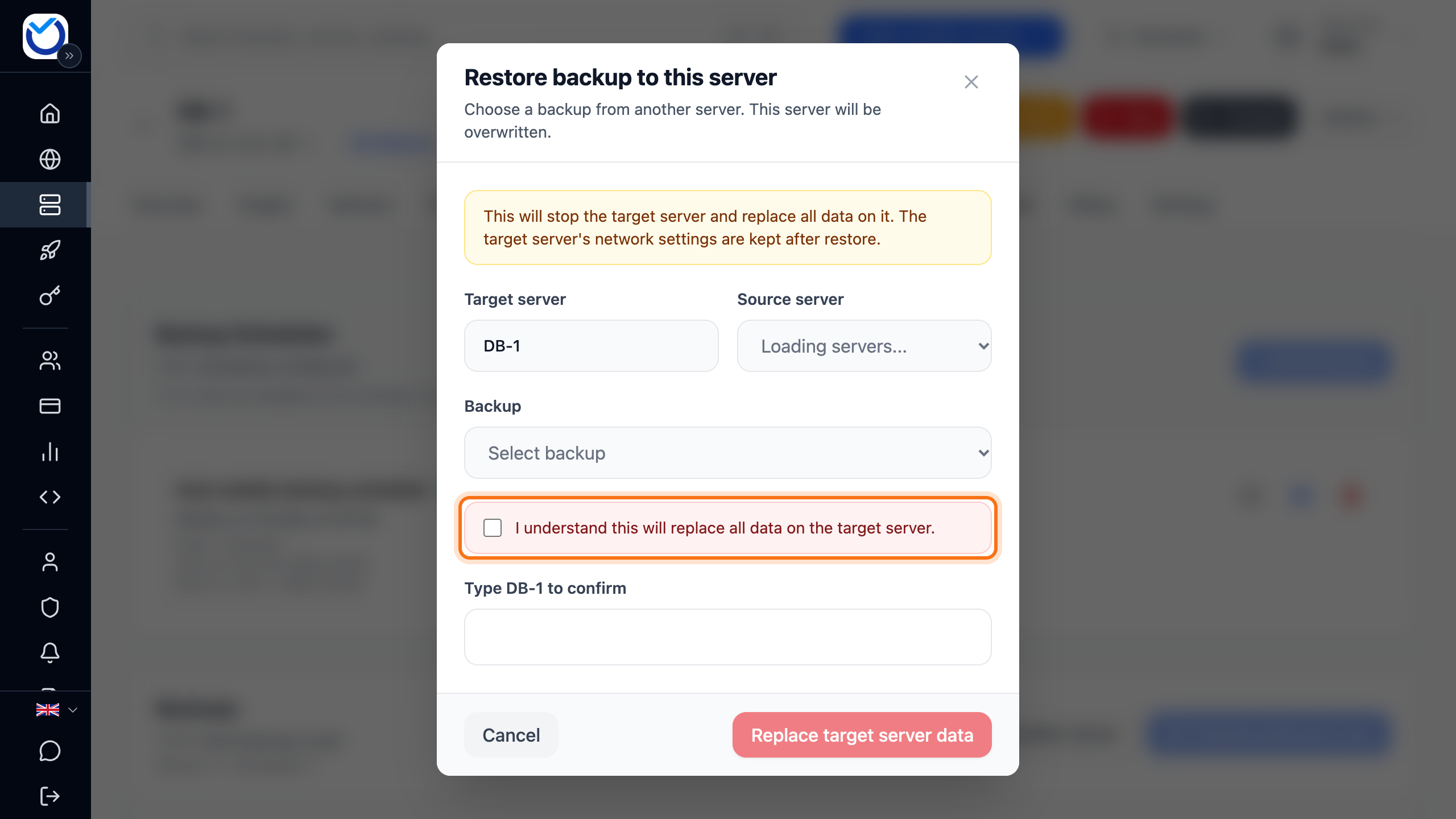
- Click Replace target server data. If the storage will be grown, the button says Grow storage and replace target server data.
The server is stopped and all its data is replaced. It keeps its network settings and IP addresses. The server the backup came from is not affected.
Restore to a new server
Section titled “Restore to a new server”- Click Restore to new on the backup’s row.
- Under Target, choose which kind of server you want.
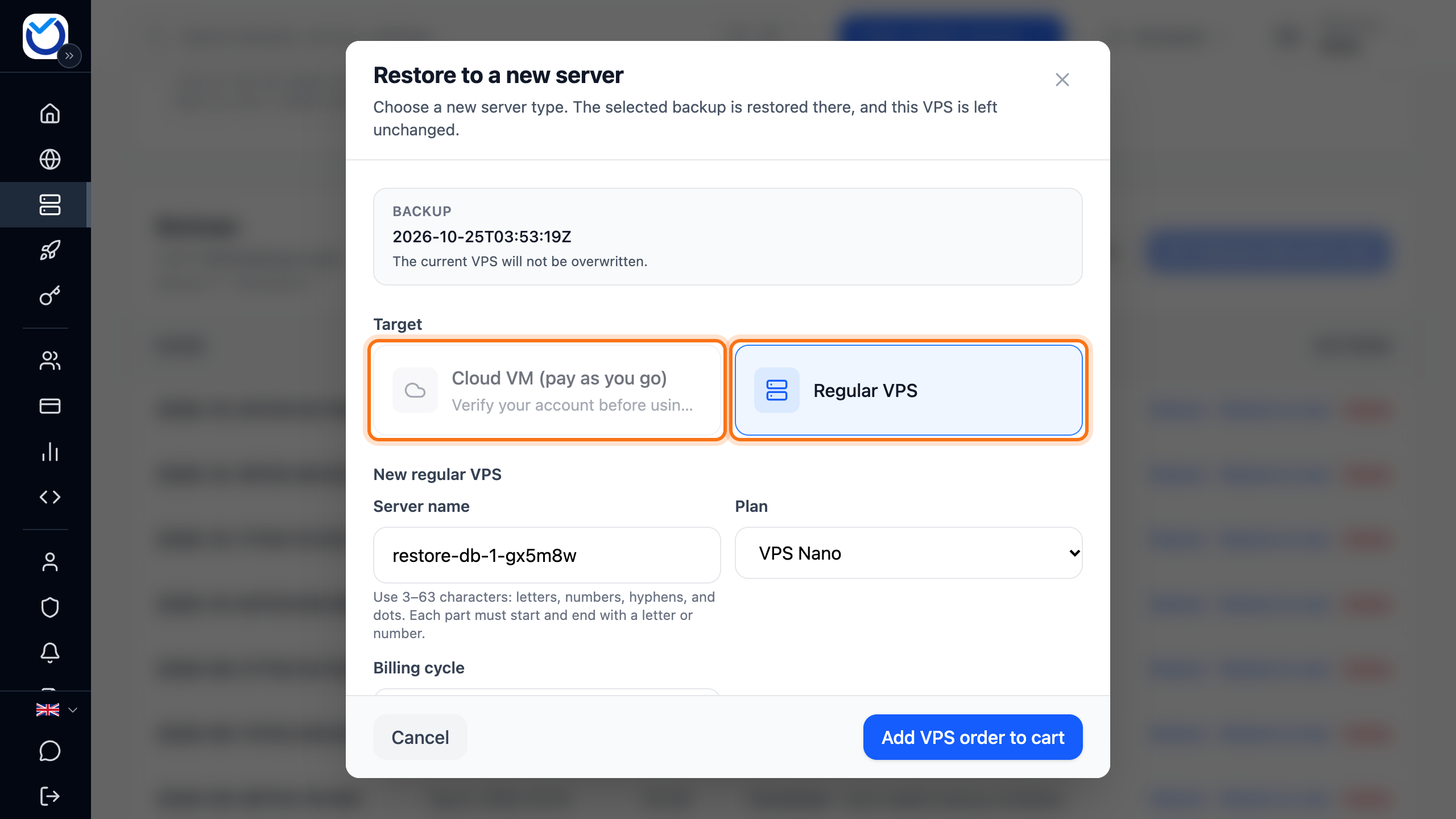
- A name is already filled in under Server name. Change it if you like.
- Finish depending on what you chose:
- Cloud VM (pay as you go): choose Region, CPU cores, Memory (GB) and Storage (GB). The storage cannot be smaller than the backup needs. The dialog shows the estimated cost. Click Create Cloud VM and restore.
- Regular VPS: choose the Plan and the Billing cycle. Only plans with a big enough disk are listed. Click Add VPS order to cart and complete the order in the cart.
A pay-as-you-go server shows among your servers as soon as it has been created. The backup is then restored to it. A regular VPS is created once the order is complete, and the restore then starts by itself. The new server gets its own IP addresses.
Good to know
Section titled “Good to know”- If a choice cannot be clicked, the dialog gives the reason. The same goes for a red error in the dialog. A pay-as-you-go VPS needs a payment card on the account, for example.
- A backup showing No disk data only holds settings. It cannot be restored, so pick another one.
- While a restore is running, you cannot take or restore other backups of the server.
- To undo a change from the last day, you can roll back a snapshot instead.