
Renew your domain
Checked against the client area 29 October 2026
A domain has to be renewed for you to keep it. With auto-renewal on, the renewal invoice is created automatically. You can also renew it yourself, one domain at a time or several at once.
Open your domains in the client area
How to
Section titled “How to”- Click Domains in the menu, then the domain.
- The domain is renewed for its billing period. To renew for more years, first click Change next to Billing Period under Domain Information. Choose the number of years and click Save Changes.
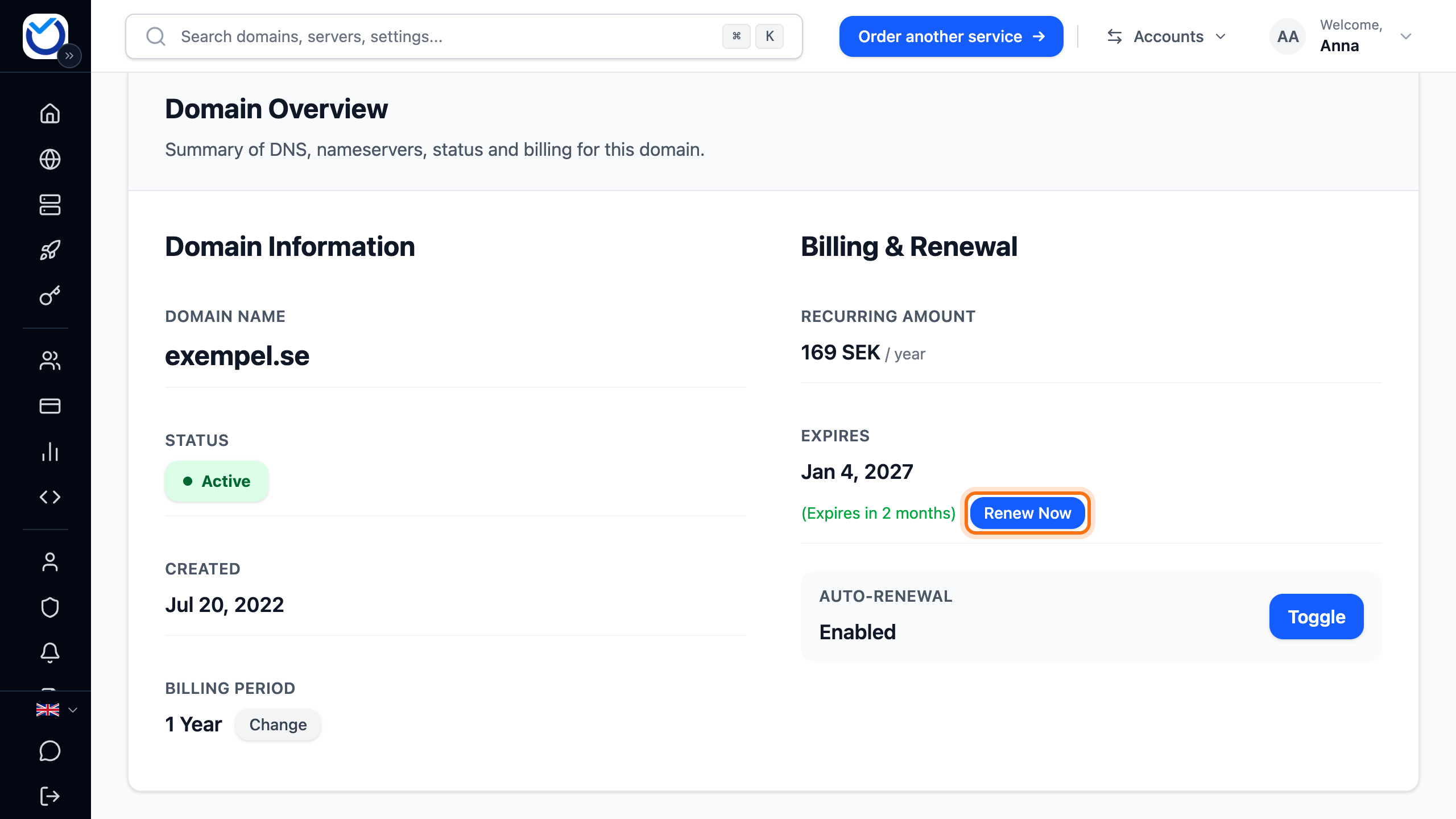
- Under Billing & Renewal, click Renew Now next to Expires.
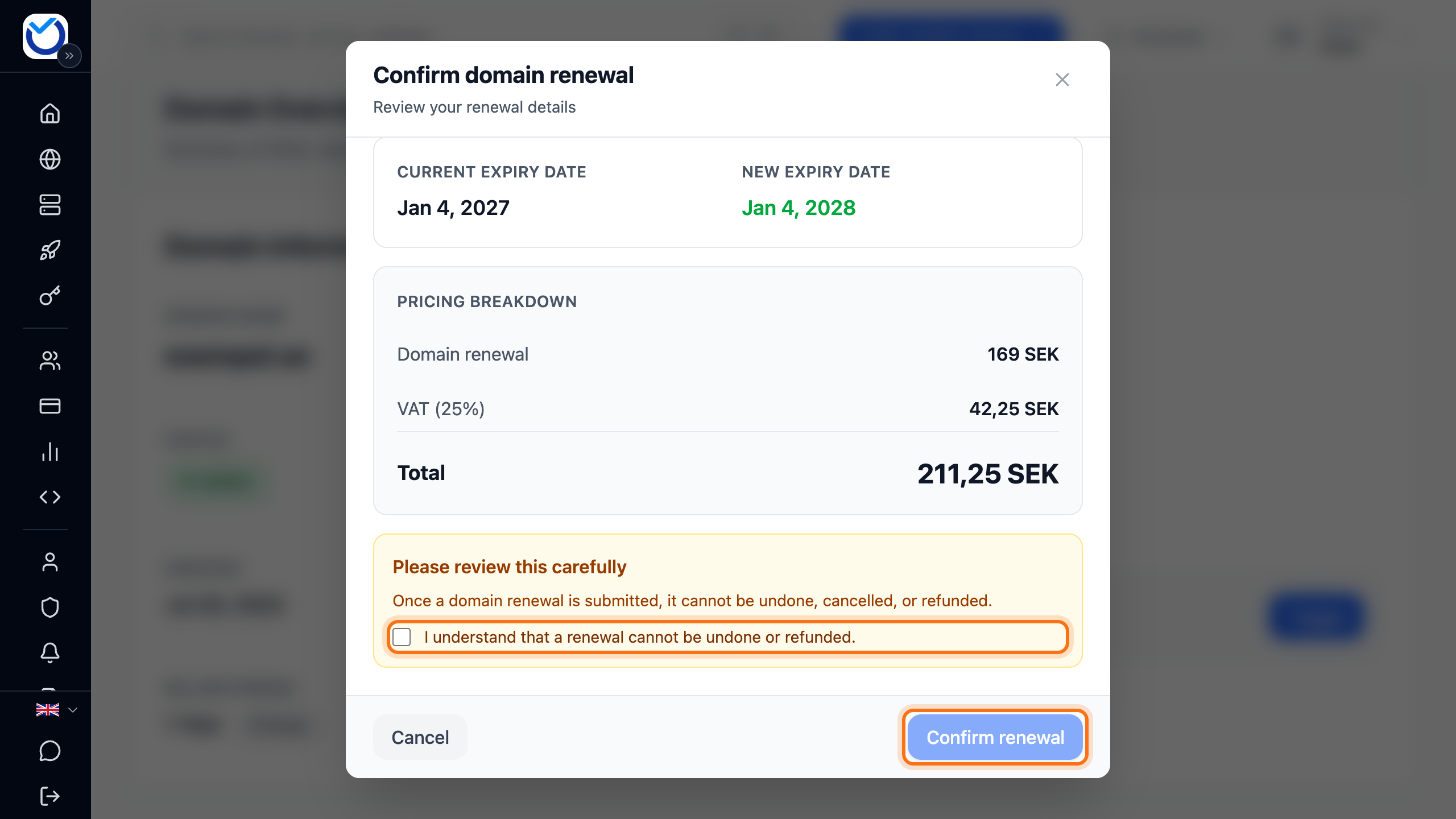
- Check the new expiry date and the price. Tick the box confirming that the renewal cannot be undone.
- Click Confirm renewal. You are taken to the invoice and pay it there.
If the button is grey, the reason is shown below it. If there is already an unpaid renewal invoice, Renewal invoice awaiting payment is shown at the top of the page. Click Pay Now and pay that one instead.
Renew several domains at once
Section titled “Renew several domains at once”- Click Domains in the menu and tick the domains.
- Click Renew Selected in the bar at the bottom.
- Untick any domains you do not want to renew right now. Tick the box confirming that the renewal cannot be undone.
- Click the Confirm Renewal button. The domains go on one invoice. Click Go to invoice and pay it. If there is no button, the invoice appears under Billing shortly.
The link below selects every domain that expires within 30 days and opens the renewal straight away.
Renew domains that expire soon
Expired domains that need reactivating are listed under Needs reactivation. They are reactivated one at a time. Click Reactivate to go to the domain’s page, see below.
Switch auto-renewal on or off
Section titled “Switch auto-renewal on or off”- Open the domain and go to the Settings tab.
- Click the switch next to Auto-Renewal. The switch is blue when auto-renewal is on.
- If you switch auto-renewal off while an unpaid renewal invoice exists, the Pending Renewal Order Found dialog asks what to do with it. Click Keep Invoice or Cancel Invoice.

With auto-renewal on, the renewal invoice is created in advance, by default 30 days before the due date. The domain is renewed once the invoice is paid. The invoice is only charged to your saved card if Charge automatically on the due date is switched on under Billing. Otherwise you pay it yourself.
With auto-renewal off, you renew the domain yourself before it expires.
The Overview tab has the same setting under Auto-Renewal. There you change it with the Toggle button.
For several domains at once, tick them in the list under Domains. Click Enable Auto-renew or Disable Auto-renew.
Reactivate a domain that has expired
Section titled “Reactivate a domain that has expired”- Open the domain. Click Reactivate domain next to Expires.
- If the domain can still be renewed the normal way, the normal renewal opens. Then follow steps 4 and 5 above.
- Otherwise the dialog shows what the reactivation costs and the last day to pay. Click Create invoice and pay and pay the invoice.
The domain is reactivated automatically once the invoice is paid. If the time to restore the domain has run out, it can no longer be saved. The dialog then says so.
Good to know
Section titled “Good to know”- Under Account > Invoice settings > When invoices are created you choose how many days before the due date renewal invoices are created.
- Under Account > Domain settings > Domain alerts you choose when you get emails about a domain that expires soon.
- The registry decides how far ahead a domain can be renewed. Some domains cannot be renewed until a certain date. If renewal is not possible, the button is grey and says why.
- If you do not want to keep the domain, read Cancel a domain.