
API keys: create, limit and revoke
Checked against the client area 29 October 2026
An API key lets a script or a program manage your services without logging in to the client area. You create the key under API Management and decide what it may do. Create one key per script or service. That way you can revoke one without the others stopping.
Open API management in the client area
How to
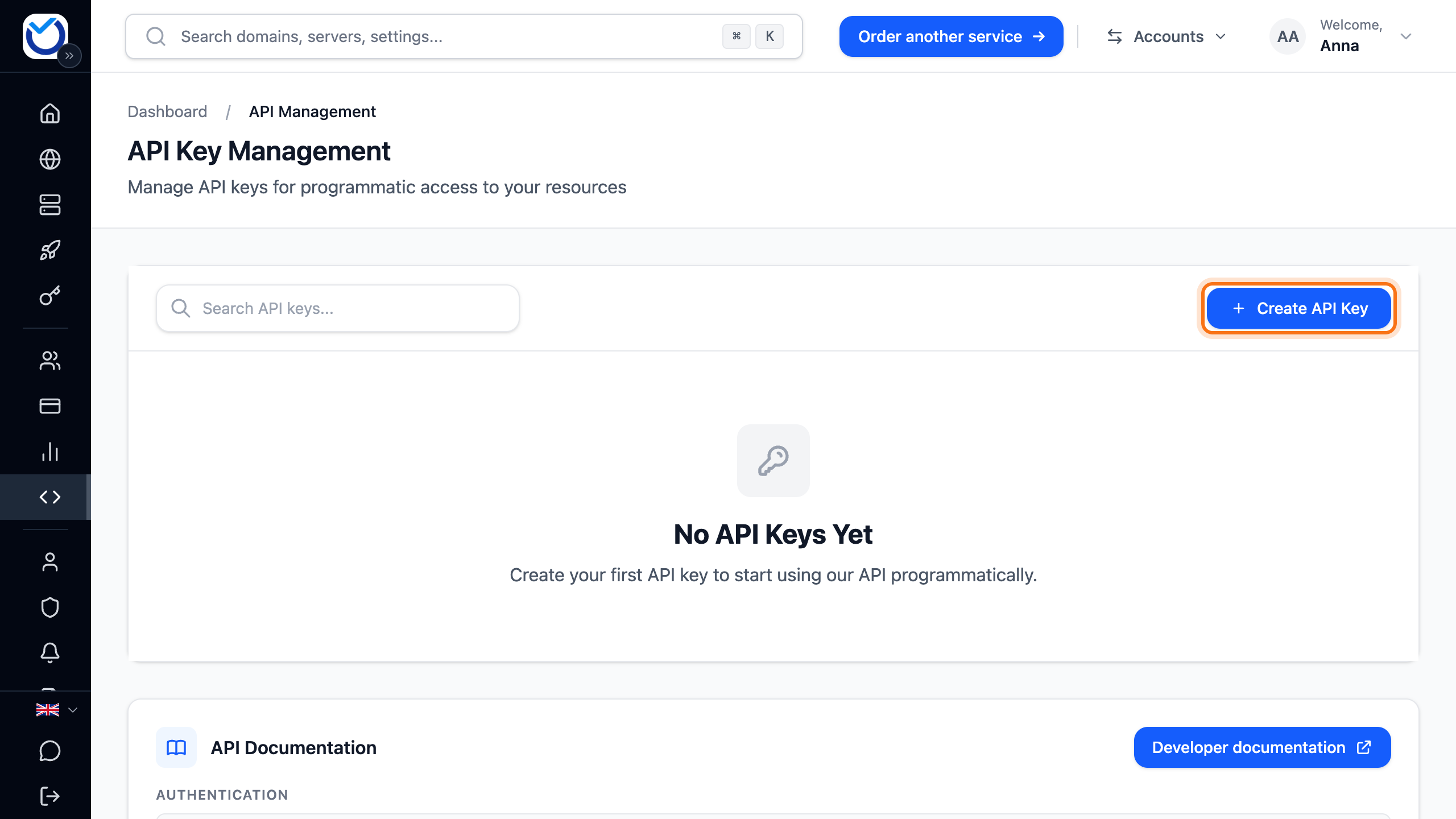
Section titled “How to”- Click API Management in the menu.
- Click Create API Key. On a phone, it is the round plus button at the bottom right.
- Enter a name under Key Name, for example what the key is for. Description is optional.
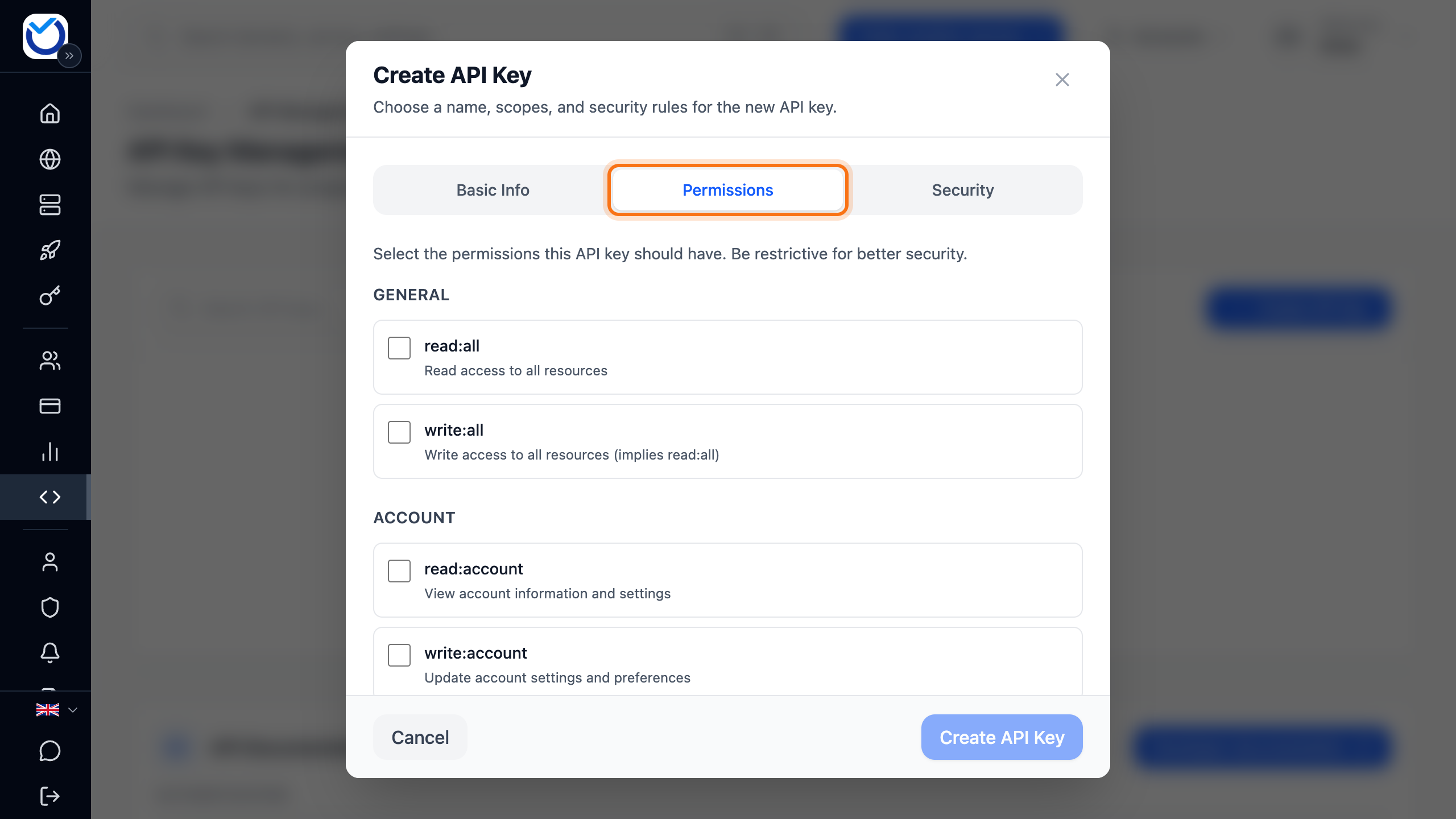
- Go to the Permissions tab and tick what the key needs. Nothing is preselected.
read:alllets the key read everything on the account.write:allalso lets it change, order and pay.- If the key only does one thing, choose just that. A key that changes DNS, for example, only needs
write:dns. It can then read DNS too.
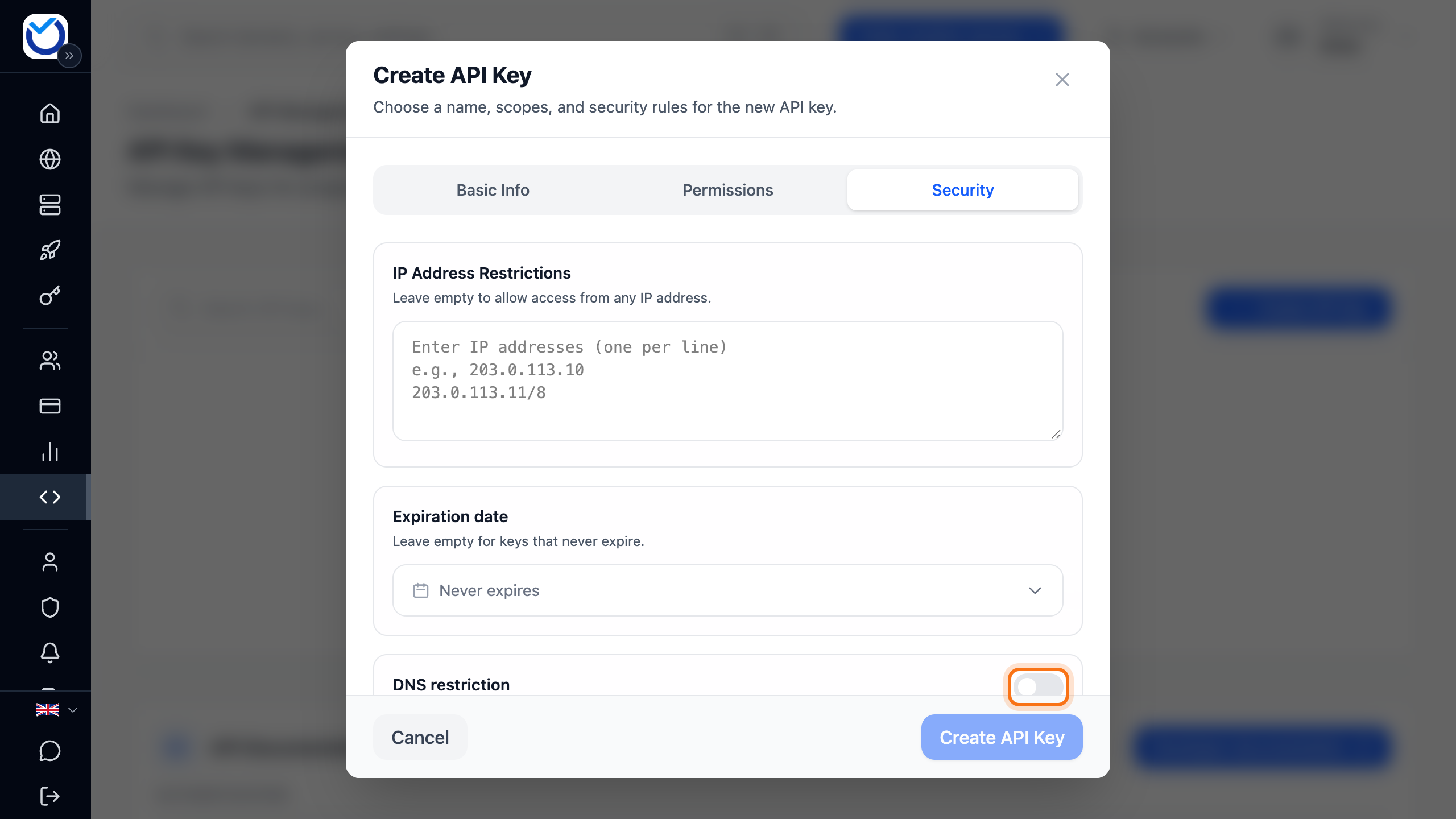
- To limit the key to certain IP addresses or DNS zones, go to the Security tab. That is also where you set an expiry date. See Limit the key further down.
- Click Create API Key.
- The key is now shown once and only once. Copy it with the copy button (Copy API Key). Store it somewhere safe, for example in a password manager.
- Click I've saved it and then Yes, close it.
If you only choose read permissions, the dialog says the key is read-only. It can look things up but never change, create or order anything.
What happens next
Section titled “What happens next”The key shows in the list with the status Live. Send it in the Authorization header with every request:
curl -H "Authorization: Bearer YOUR_API_KEY" \ https://cloud.hostup.se/api/v2/domainsThe same example is under Authentication below the list of keys. The documentation lists the requests you can make. Click Developer documentation under API Documentation.
Each key can make 300 requests per five minutes.
Limit the key
Section titled “Limit the key”The limits are on the Security tab when you create the key.
- IP Address Restrictions: enter one IP address or network per line, for example
203.0.113.10or203.0.113.0/24. IPv6 works too. Requests from other addresses are refused. Leave the field empty and the key works from any address. - Expiration date: pick the day the key stops working, at most one year ahead. If it says Never expires, the key works until you revoke it. The date cannot be changed later.
To limit the key to certain DNS zones or records:
- Turn on the switch next to DNS restriction.
- Under What can the key do with DNS?, choose Read or Read and change.
- Tick the zones under Allowed DNS zones. The key can then reach every record in them.
- If the key should only reach certain records, add a rule under Record rules. Choose the zone, enter the record name and choose the record type. An empty name means the root of the zone. Click Add rule.
You need at least one zone or one rule. A key that only fetches SSL certificates, for example, only needs a rule for the TXT record _acme-challenge in its zone.
To change a key you already have, click the three dots (Actions) on its row. Choose Edit Permissions. Change the name, permissions, IP addresses or DNS restriction and click Save Changes. The change applies straight away. The key keeps working with the new settings.
Roll or revoke a key
Section titled “Roll or revoke a key”If a key has gone astray, replace it with a new one. Do it when you can put the new key into your scripts right afterwards.
- Click the three dots (Actions) on the key’s row and choose Roll Secret (Generate New Key). The old key stops working at once. The client area does not ask first.
- Copy the new key. It is shown only once.
- Click Done.
The new key has the same permissions, limits and expiry date as the old one.
If you no longer need a key, revoke it:
- Click the bin (Revoke Key) on the key’s row.
- Click Revoke Key.
Everything that uses the key loses access straight away. This cannot be undone. To revoke several keys at once, tick them in the list. Click Revoke Selected and then Revoke All.
Good to know
Section titled “Good to know”- Click the key’s name in the list to see its permissions, IP addresses, DNS restriction and when it was created.
- Under the three dots you find View Statistics. It shows the requests of the last 30 days and the latest errors.
- A key whose expiry date has passed stays in the list as Expired. It no longer works. Create a new one instead.
- Ticking This is a test key (will be prefixed with sk_test_) only changes how the key begins. A test key reaches your real services just like a normal key.
- Users you have added to the account do not see API Management in the menu.
- AI apps you have connected to the account are not in the list of keys. They are under Connected AI apps further down the page. Read more in Connect Claude or ChatGPT to your account.