
Volumes (block storage) for pay-as-you-go VPS
Checked against the client area 29 October 2026
A volume is a disk that does not belong to one particular server. You attach it to a pay-as-you-go VPS. Later you can detach it and attach it to another server. You find your volumes on the Storage tab of the Dashboard.
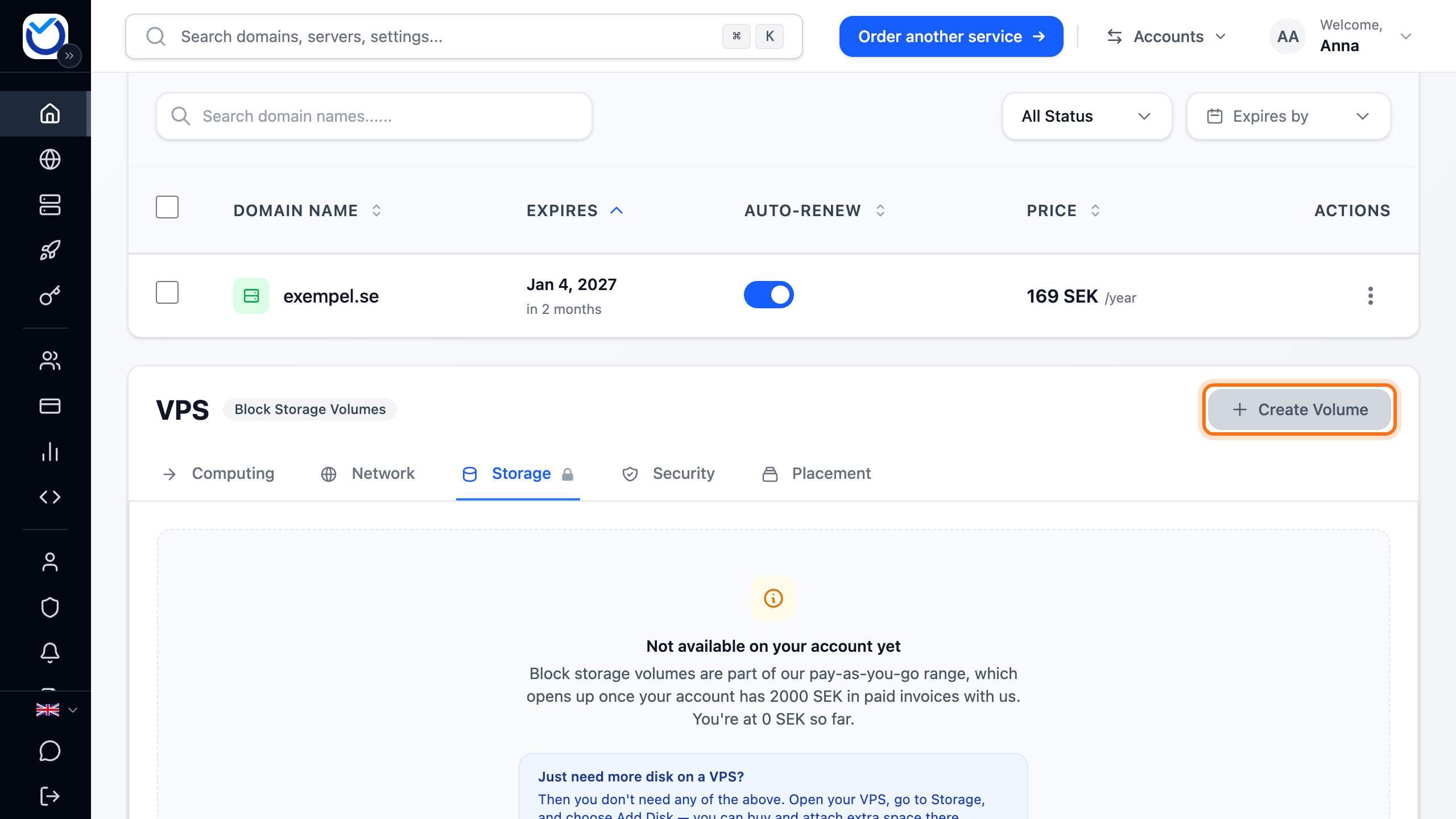
Open the storage tab in the client area
Before you start
Section titled “Before you start”- Volumes are only for pay-as-you-go VPS. On a regular VPS, add a disk on the server’s Storage tab instead. That is described in More storage for your VPS.
- The account needs a payment card, some payment history with us and a country where pay-as-you-go is offered. If anything is missing, the tab says what.
- The account must also be verified. If the tab says Verification required for movable volumes, click Verify Your Account.
How to
Section titled “How to”- Go to the Dashboard and the Storage tab.
- Click Create Volume.
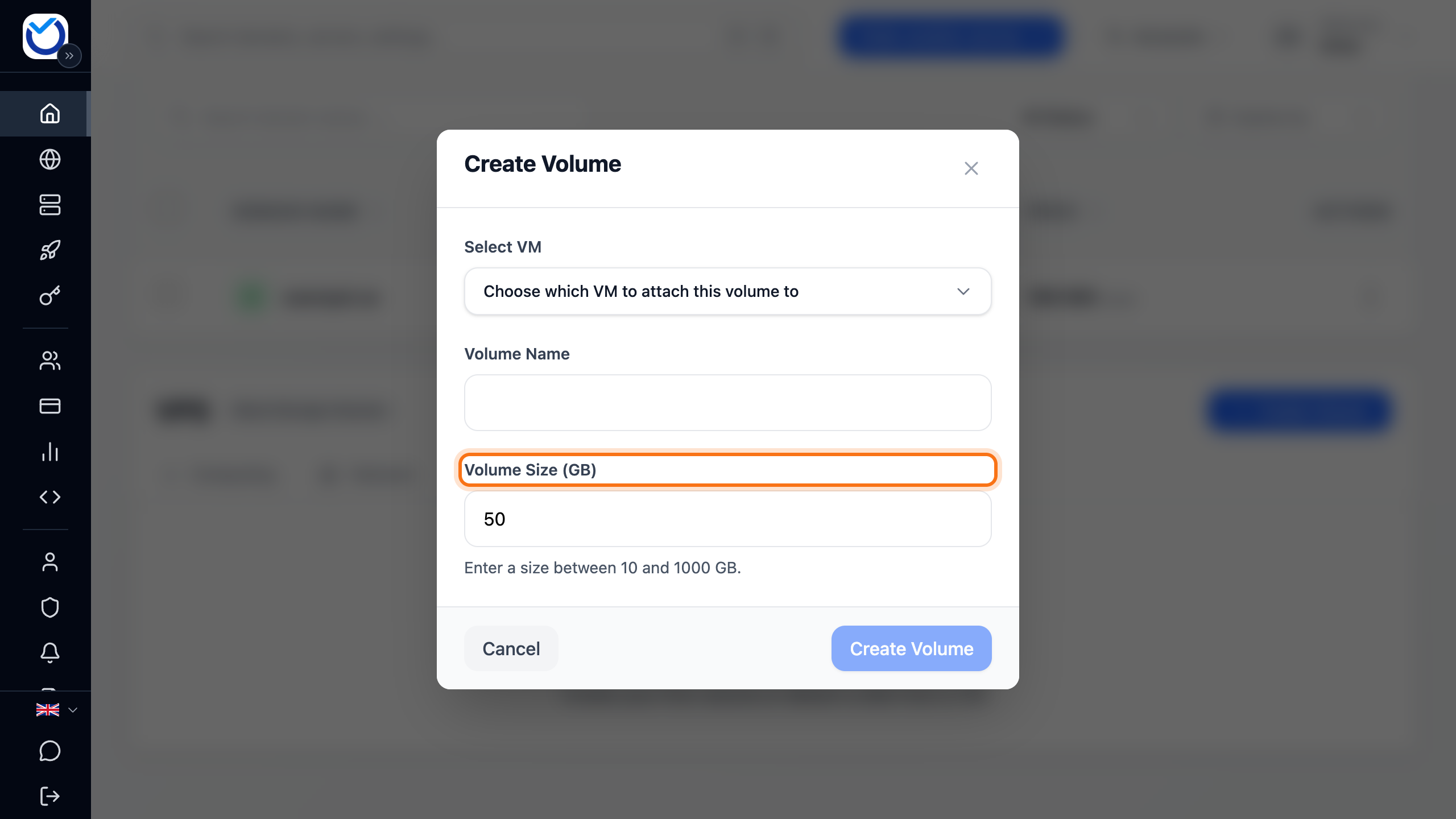
- Pick the server under Select VM. Only active pay-as-you-go VPS are listed.
- Optionally enter a name under Volume Name.
- Choose a size under Volume Size (GB), between 10 and 1000 GB.
- Click Create Volume.
What happens next
Section titled “What happens next”The volume is created and attached to the server. This takes a little while. It then shows as Attached in the list.
The volume is empty. Create a file system on it and mount it in the operating system, the same way as a new disk. That is described in More storage for your VPS.
While the volume is attached to a server, it is billed by the hour, just like the server’s other disks. Its size counts towards your account’s storage allowance.
Move a volume to another server
Section titled “Move a volume to another server”-
Click Manage in VM next to the volume. The server’s Storage tab opens.
-
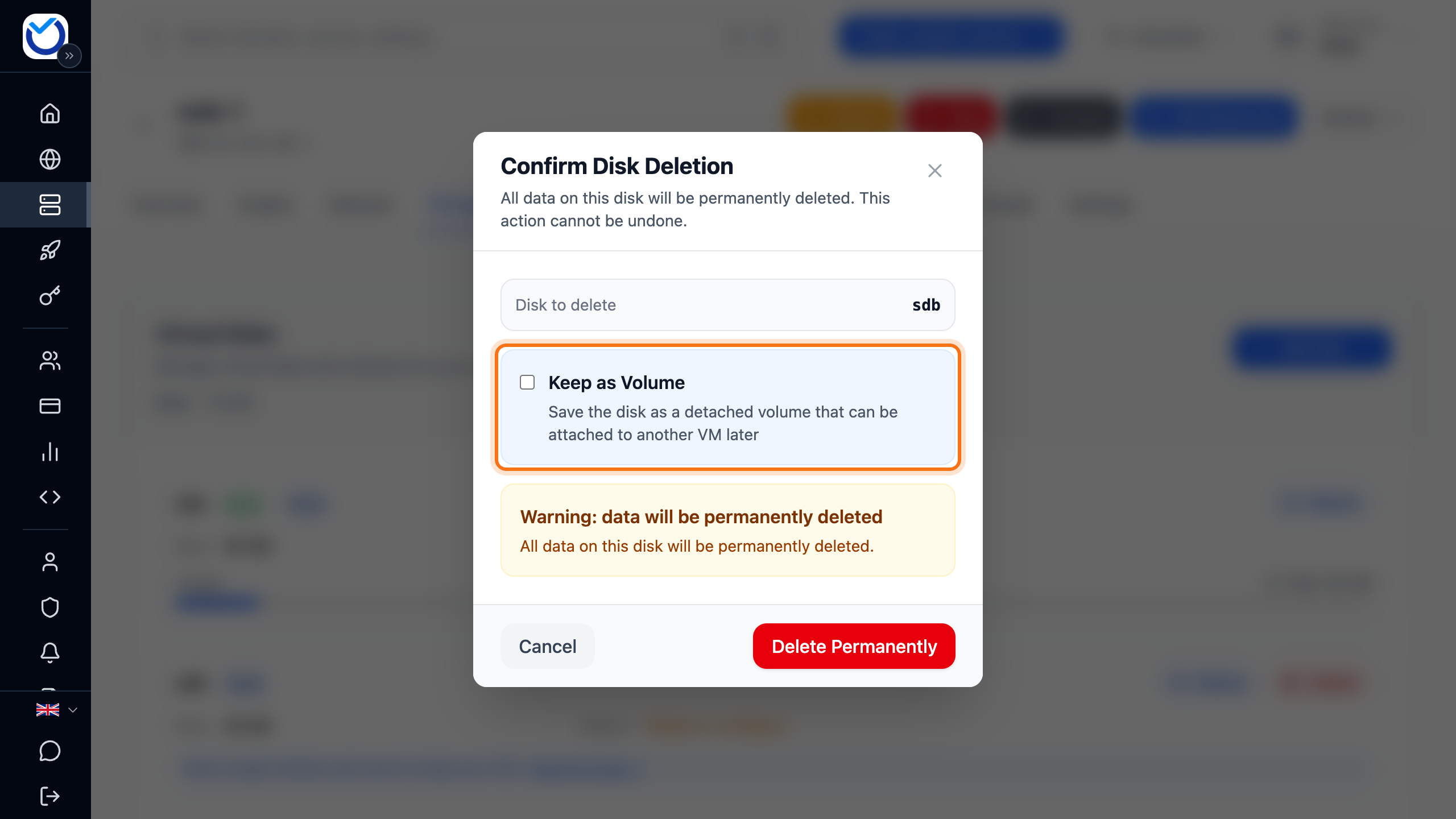
Click Delete next to the disk. Tick Keep as Volume and click Detach Disk.
Without the tick, the button says Delete Permanently. The disk is then deleted with all its data.
- Go back to the Storage tab of the Dashboard. The volume now shows as Unassigned. Click Attach.
- Pick the server under Select VM and a Disk Slot. Click Attach Volume.
You can also attach a volume from the server’s side. On its Storage tab, click Add Disk and choose Attach Existing Volume.
Sometimes the server needs a restart before the disk shows up in the operating system.
Good to know
Section titled “Good to know”- A detached volume still counts towards your account’s storage allowance.
- To delete a detached volume, click Delete in the list and confirm with Delete Volume. All data on it is erased and cannot be brought back.
- A volume attached to a server cannot be deleted here. Detach it first.