
Can't reach your VPS? Troubleshoot the connection
Checked against the client area 29 October 2026
If the server does not answer, you can check from the client area whether it can be reached from the internet. The Connection troubleshooter tries the most common ports and shows where the problem most likely is. If the server does not start at all, the console shows what is happening. From there you repair it with an ISO file or a backup.
Open your servers in the client area
How to
Section titled “How to”- Open the server in the client area. If it is stopped, click Start at the top of the page.
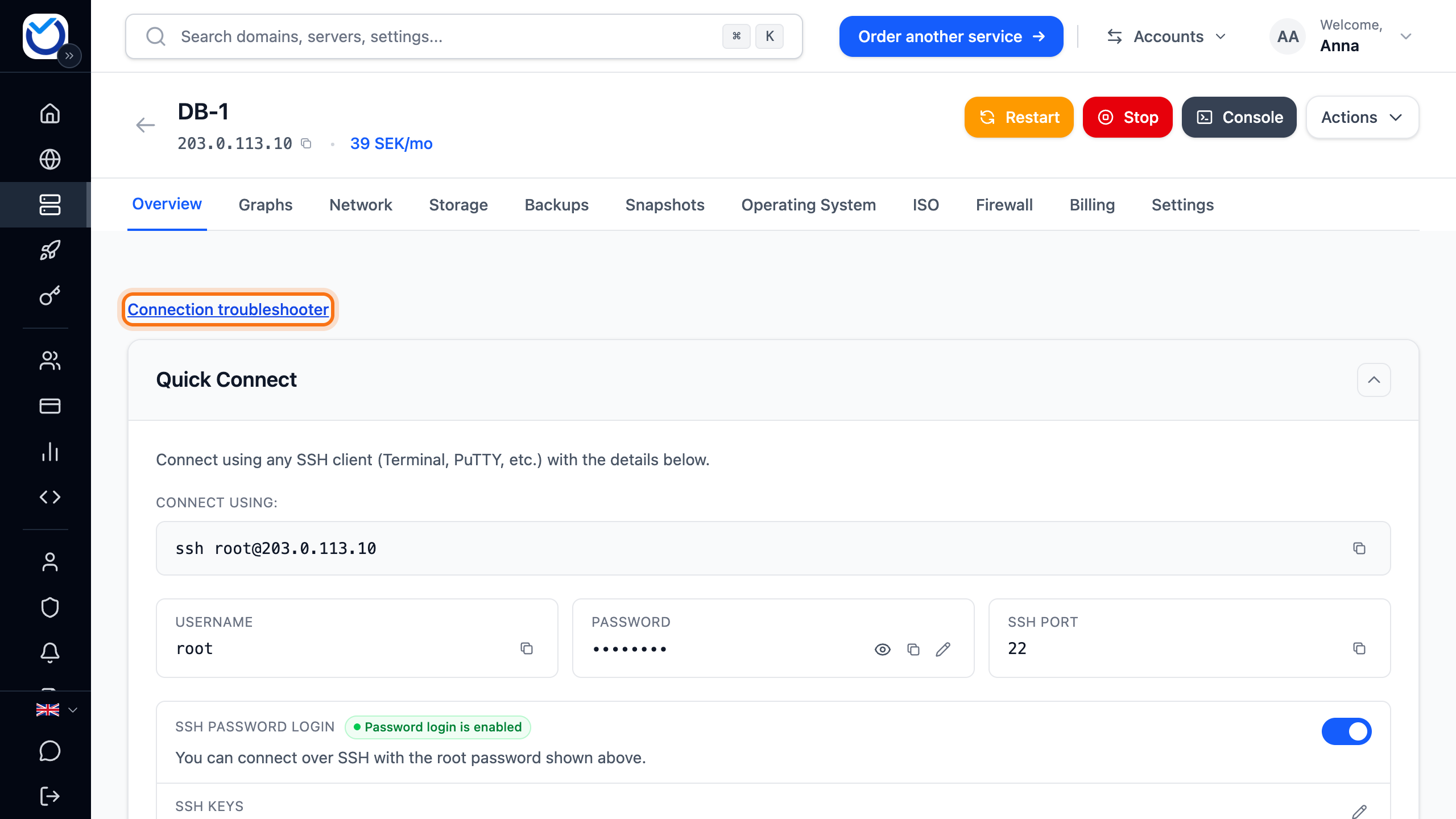
- Click the Connection troubleshooter link on the Overview tab.
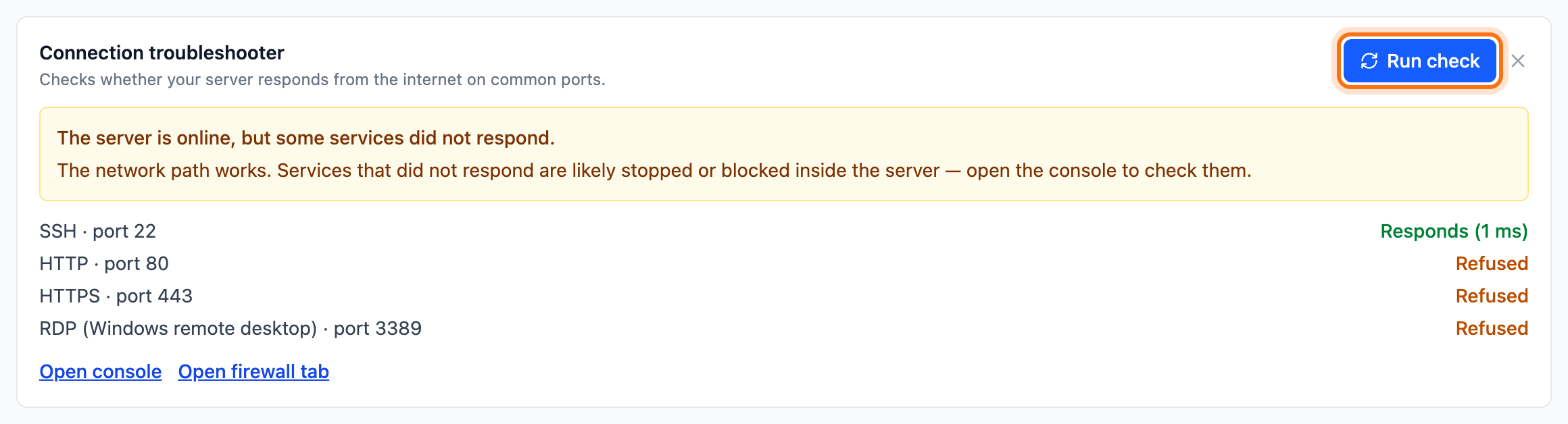
- Click Run check. The check takes a few seconds.
What happens next
Section titled “What happens next”The check tries the same four ports on every server: 22 (SSH), 80 and 443 (web) and 3389 (Remote Desktop). Look at the port you are trying to connect to. A port you don’t use usually does not answer. That is not a fault.
- Responds: something on the server accepts connections on the port.
- Refused: the server is up. Nothing accepts connections on the port. The service is stopped or a firewall inside the server refuses it.
- No response: nothing answered. The server is off, has not started, or a firewall stops the traffic.
The top of the result says what the likely cause is and what to do next. If the check found a problem, it also shows Open console and Open firewall tab.
Fix the problem
Section titled “Fix the problem”- No response on your port: if you have turned on the firewall on the Firewall tab, traffic to ports without a rule is stopped. Add a rule for the port. See Firewall for your VPS.
- Refused, or no response with the firewall off: open the console and check the service and the firewall inside the server. See The console (VNC). You can also run commands from the client area with Remote Commands.
- Your port responds but you still can’t get in: the server can be reached from the internet. The problem is most likely on your network or in your login details. You create a new password under Settings › Root Password › Create New Password.
If the server won’t boot
Section titled “If the server won’t boot”If the server does not answer at all, the console shows what happens when it starts.
- Click Console at the top of the page. The console opens in a new window.
- Click Restart. In the Restart server dialog, click Restart. If the server has hung, first tick The VM is unresponsive – force stop immediately. That cuts the power straight away. If the server is stopped, click Start instead.
- Follow the boot in the console and read the error message there.
You then have three options, from the one that keeps the most to the one that erases everything:
- Repair the disk: mount an ISO file with a rescue system on the ISO tab and click Boot from ISO. From there you can reach the server’s disk in the console and repair the file system. See Boot your VPS from your own ISO file or netboot.xyz.
- Restore a backup: if you have a backup from when the server worked, restore it. Everything changed after it is overwritten. See Restore a backup of your VPS.
- Reinstall: everything on the server is erased and you get a clean server. See Reinstall your VPS with a new operating system.
Good to know
Section titled “Good to know”- If the page says Bandwidth limit reached, the bandwidth has run out. You can’t open the console or start the server until you have added bandwidth or the next period has started. See Bandwidth on your VPS.
- While another operation is running on the server, such as a backup, the console and the power buttons are locked until it has finished.