
Verify your account with BankID or an ID document
Checked against the client area 29 October 2026
Some services need us to know who you are. You verify the account once, with BankID or with a passport, driving licence or ID card. After that you can use a VPS billed by the hour and other services billed by usage. Verification is also needed to order Snapback. With BankID verification you can also request an open port 25.
Open verification in the client area
Before you start
Section titled “Before you start”- Verification opens once the account has paid invoices with us up to a certain amount. Until then the page shows Cloud VM availability and how far you have left. If you come from Snapback or a port 25 request, you can verify with BankID straight away.
- Only the account owner can verify. A user or partner with access to the account cannot.
Verify with BankID
Section titled “Verify with BankID”BankID is offered on accounts that have Sweden as their country.
- Open the Verify Identity for Cloud page.
- Under Choose verification method, click BankID.
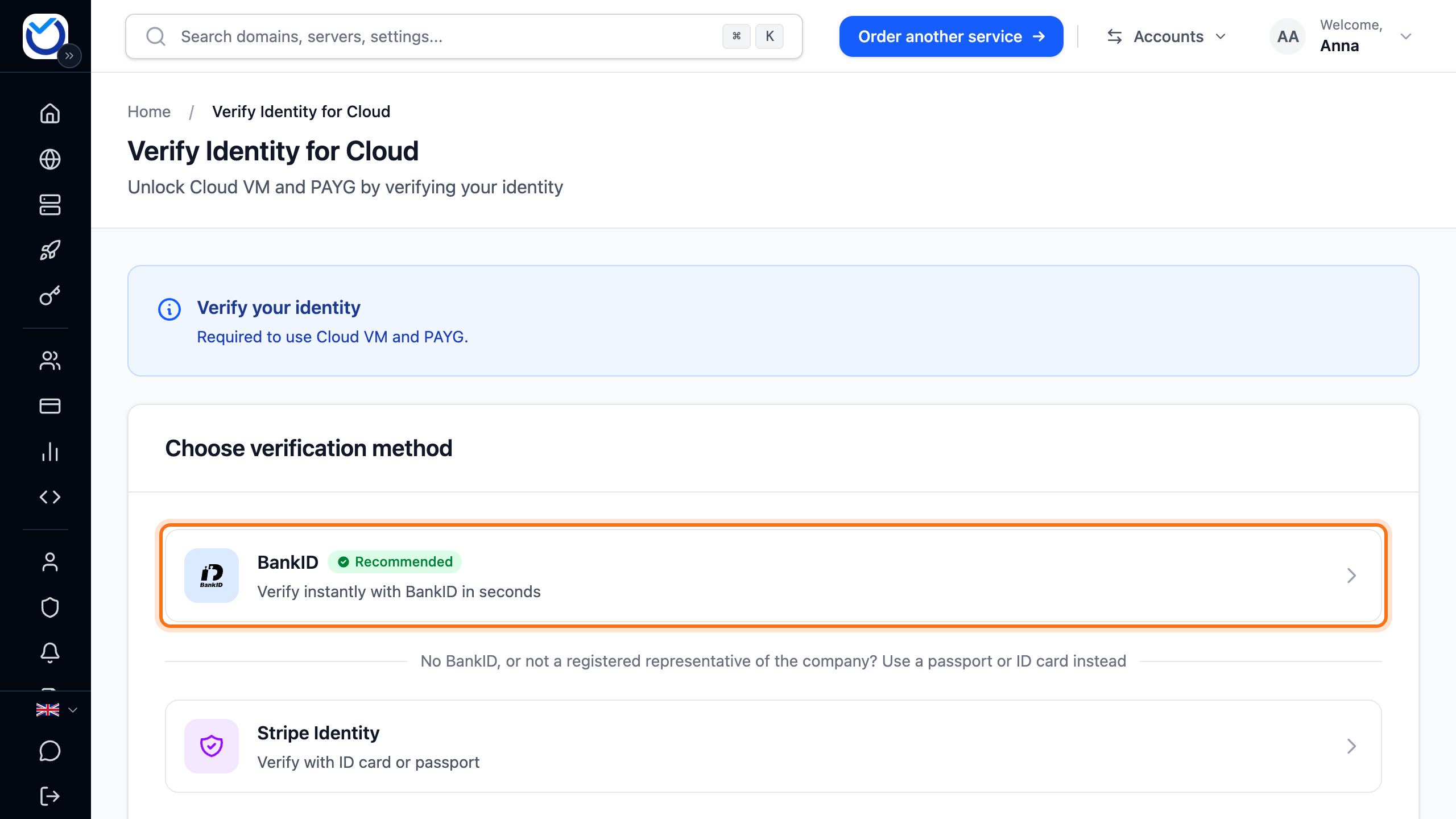
- Identify yourself with BankID.
On a private account, the personal identity number must be the one on the account. If the account has no personal identity number yet, yours is saved.
On a company account, the person identifying must be registered with Bolagsverket (the Swedish Companies Registration Office) as the company’s CEO, board member, chairman or beneficial owner. One of them doing it once is enough. Owning shares or working at the company is not enough.
Verify with a passport or ID card
Section titled “Verify with a passport or ID card”This works for every account, also without a Swedish BankID. Use it for a non-profit association or foundation too. The register often holds no data on who represents those.
- Open the Verify Identity for Cloud page.
- Click Stripe Identity.

- You are taken to a page where you photograph a passport, driving licence or national ID card. You also take a selfie.
- When you are done you come back to the client area. The check usually takes a few seconds.
The name on the document must match the name on the account.
What happens next
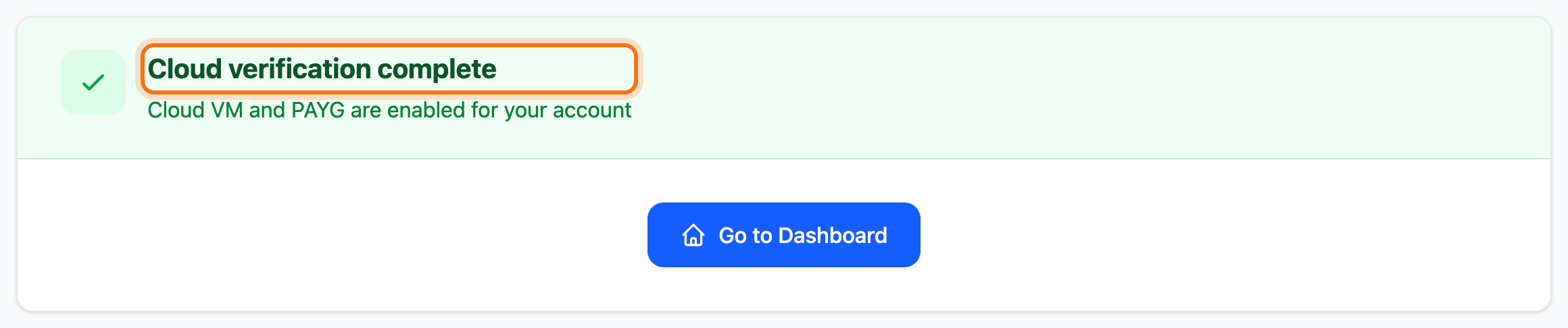
Section titled “What happens next”When the verification is done, the page says Identity verified or Verification Complete!. You are then taken to the start page. If you came from a port 25 request, you go back to it. If you open the verification page again, it says Cloud verification complete.
If your BankID cannot be matched to the account, the page says BankID linked – Cloud is not verified. That happens when the personal identity number is not the account’s. It also happens when you are not in the register as a representative of the company. Your BankID is then linked for sign-in, but the account is not verified. On a company account, one of the registered representatives can do the step. You can also click Verify with passport or ID card instead.
If the name on the document does not match the name on the account, the page says Your ID is verified. One manual check remains.. You do not need to verify again.
- If the name on the account is wrong, click Update account name and correct it.
- Go back to the verification page and click Check again.
If both names are right, we check it by hand.
Good to know
Section titled “Good to know”- Verification belongs to the account. If you have several accounts, verify each one.
- Of the two verifications, only BankID counts for port 25. A passport or ID card is not enough. Without BankID you can request port 25 for a VPS prepaid for a year. See Open port 25 on your VPS.
- Verifying with BankID also links your BankID to the account, so you can sign in with it. See Sign in with BankID.
- To create a VPS billed by the hour once the account is verified, see Create a VPS billed by the hour.