
Transfer your domain to Hostup
Checked against the client area 29 October 2026
Once the domain is with us, you manage its renewal, DNS and settings in the client area. To move it, you need the transfer code from your current provider. It is also called an EPP code or authorization code.
Before you start
Section titled “Before you start”- Get the transfer code from your current provider.
- The transfer does not go through while the domain has a transfer lock at your current provider. If the search shows Transfer Lock next to the domain, ask the provider to turn the lock off.
- Under ICANN rules, a domain registered or transferred in the last 60 days cannot be transferred. The search then shows when it can be.
How to
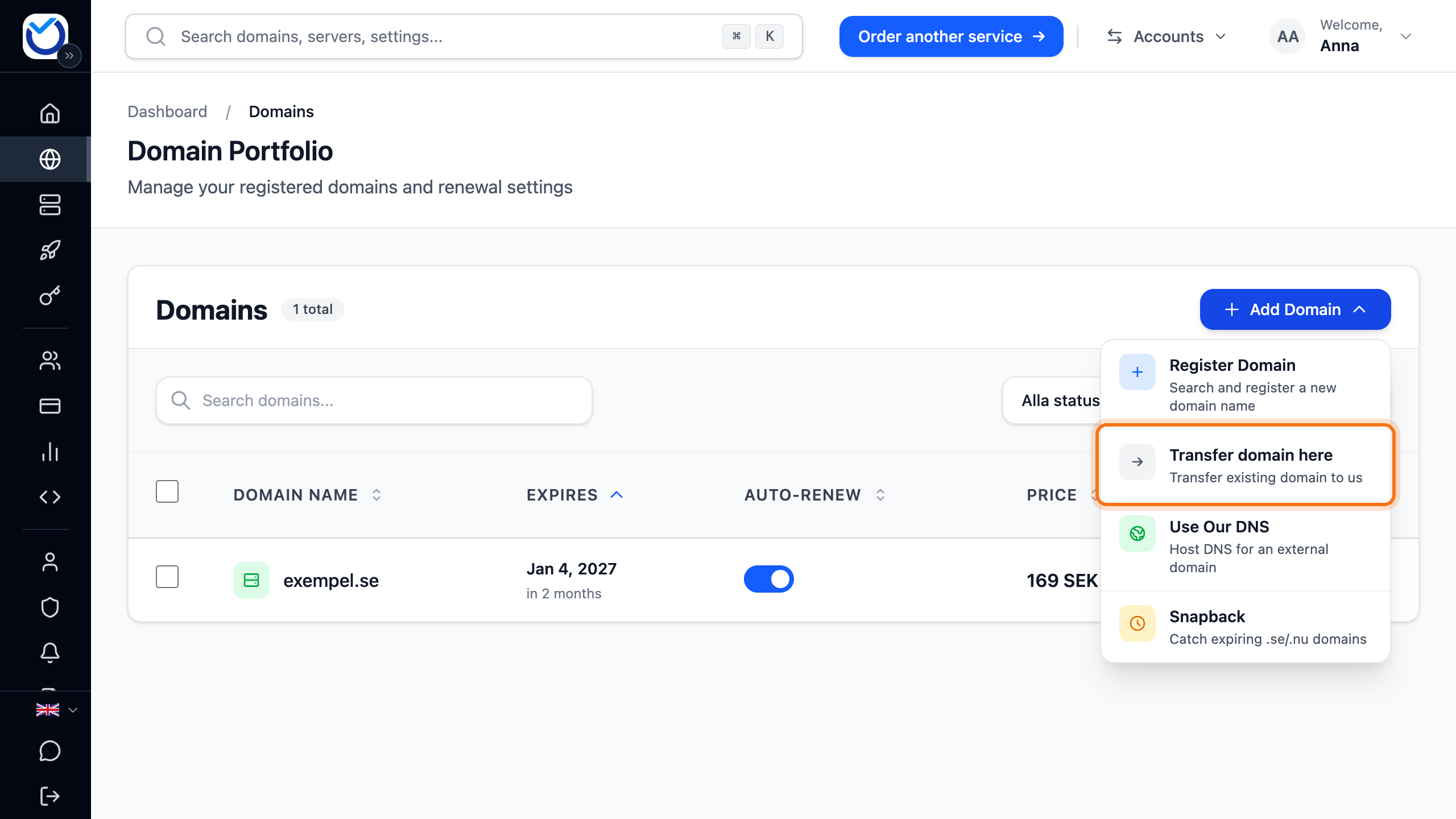
Section titled “How to”- Click Domains in the menu. Click Add Domain and choose Transfer domain here. On a phone it is the round plus button at the bottom right.
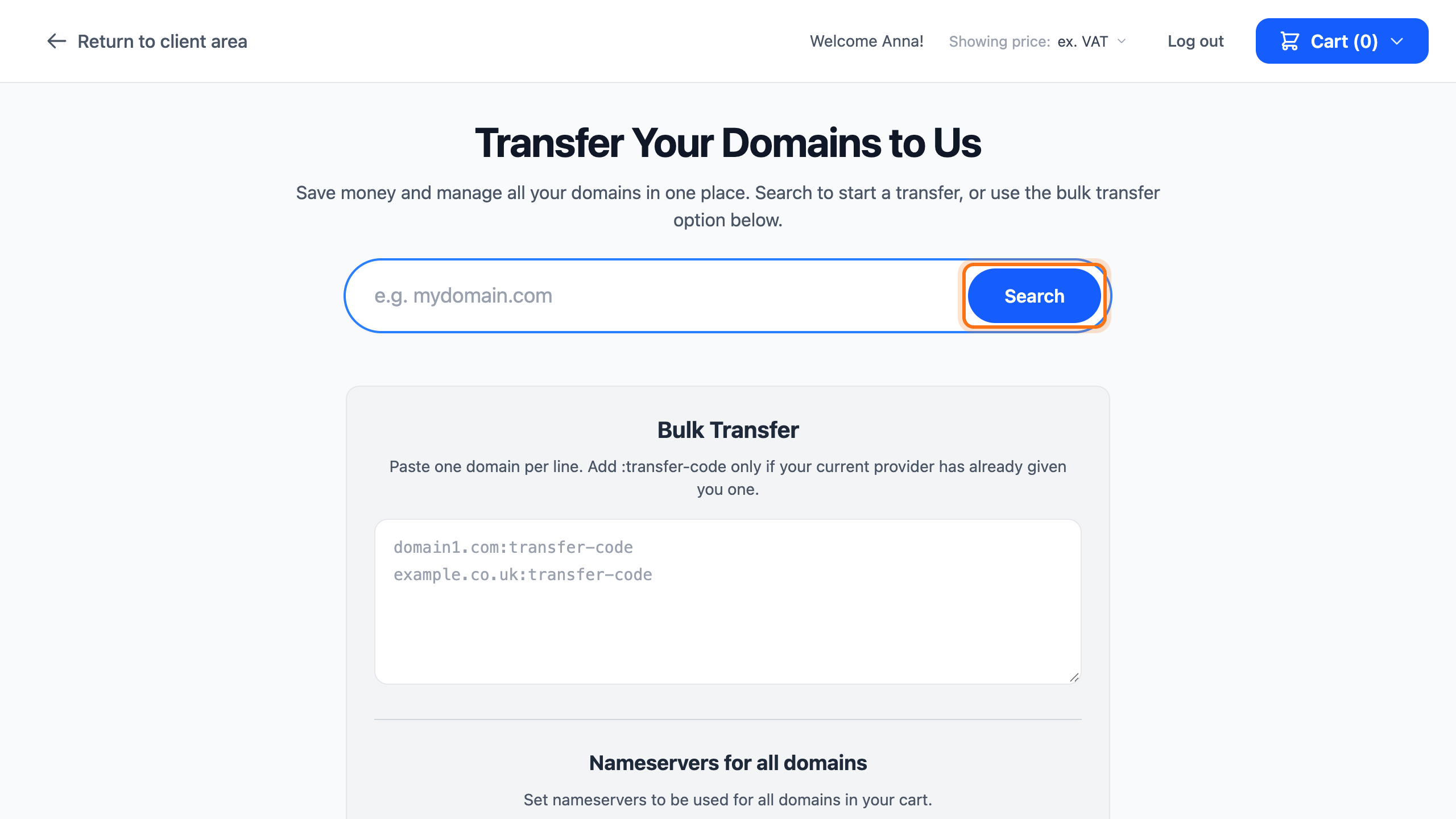
- Type the domain and click Search.
- Click Transfer next to the domain, then Continue to cart.
- Paste the code under Transfer code (EPP code). If the domain needs no code, the cart says You can continue without a transfer code instead.
- Click DNS Settings and choose where the domain’s DNS should live:
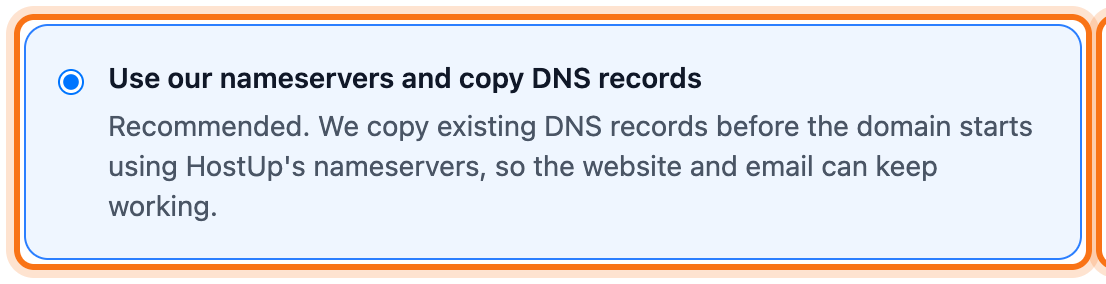
- Use our DNS servers moves DNS to us. Leave Yes, copy existing DNS records ticked. The domain’s records are then copied, so the website and email keep working.
- Use custom nameservers keeps DNS where it is today, for example at Cloudflare. The cart fills in the nameservers the domain uses now.
- Click Go to checkout and check your details.
- If the transfer costs something, click Continue to payment and pay. Otherwise click Complete Order.
What happens next
Section titled “What happens next”If the transfer costs something, it starts once the invoice is paid. The domain shows under Domains. The top of the domain’s page shows how the transfer is going. Most tabs are locked until it is done.
Your current provider can approve the transfer straight away. Otherwise it goes through by itself after a few days. The box on the domain’s page shows how far the transfer has come.
You do not lose any time on the domain. If the transfer costs something, one year of renewal is included. The search shows the new expiry date. A transfer at no cost keeps the domain’s expiry date.
When the transfer is done, check the records on the DNS Management tab. If something is missing, fetch the records with Import DNS Records. Enter the old provider’s nameserver or paste a zone file.
If the transfer does not go through
Section titled “If the transfer does not go through”The box at the top of the domain’s page says what is holding the transfer up. Here is what to do:
- Awaiting Payment: click Pay Now and pay the invoice.
- Domain lock is active: ask your current provider to turn off the transfer lock. Then click Retry Transfer.
- Transfer code may be incorrect: ask your current provider for a new transfer code. Click Update transfer code, paste the code and click Save and retry transfer.
- The registry rejected the transfer code: ask your current provider for a new transfer code. Type it under New transfer code in the box and click Update EPP Code & Retry Transfer.
- Complete the transfer at your current provider: ask your current provider to change the domain’s IPS tag to the registrar tag shown in the box. The transfer completes once the tag is changed.
- Domain Too New for Transfer: wait until the date in the box. Then start the transfer again from the same page.
- If something is missing from your account details, the box says which detail. Click Open Account Details and correct it. Go back to the domain and tick I have updated these account details. Then click Retry Transfer.
Good to know
Section titled “Good to know”- If you have many domains, use Bulk Transfer below the search field on the transfer page. Write one domain per line with the transfer code after a colon, for example
example.com:transfer-code. Click Start Transfer. - Under Account > Domain settings > Nameservers for Domain Transfers you choose what should happen to the nameservers when you transfer domains here. You can still change it per domain in the cart.
- If the domain is already at Hostup on another account, it should not be transferred. The current owner hands it over to your account instead.
- To move a domain from us to another provider, read Transfer a domain away from Hostup.