
E-invoices via Peppol for Swedish companies
Checked against the client area 29 October 2026
If your company receives e-invoices via Peppol, we send your invoices there. They land straight in your accounting system and you do not need to turn anything on. Under E-invoices (Peppol) in the client area you can see how invoices are sent, and turn e-invoicing off.
Open invoice settings in the client area
Before you start
Section titled “Before you start”E-invoices via Peppol are only available for companies in Sweden. The account must be a company account with Sweden as its country and an organisation number. See Change your contact details, address and account type.
See how invoices are sent
Section titled “See how invoices are sent”- Go to Account › Invoice settings.
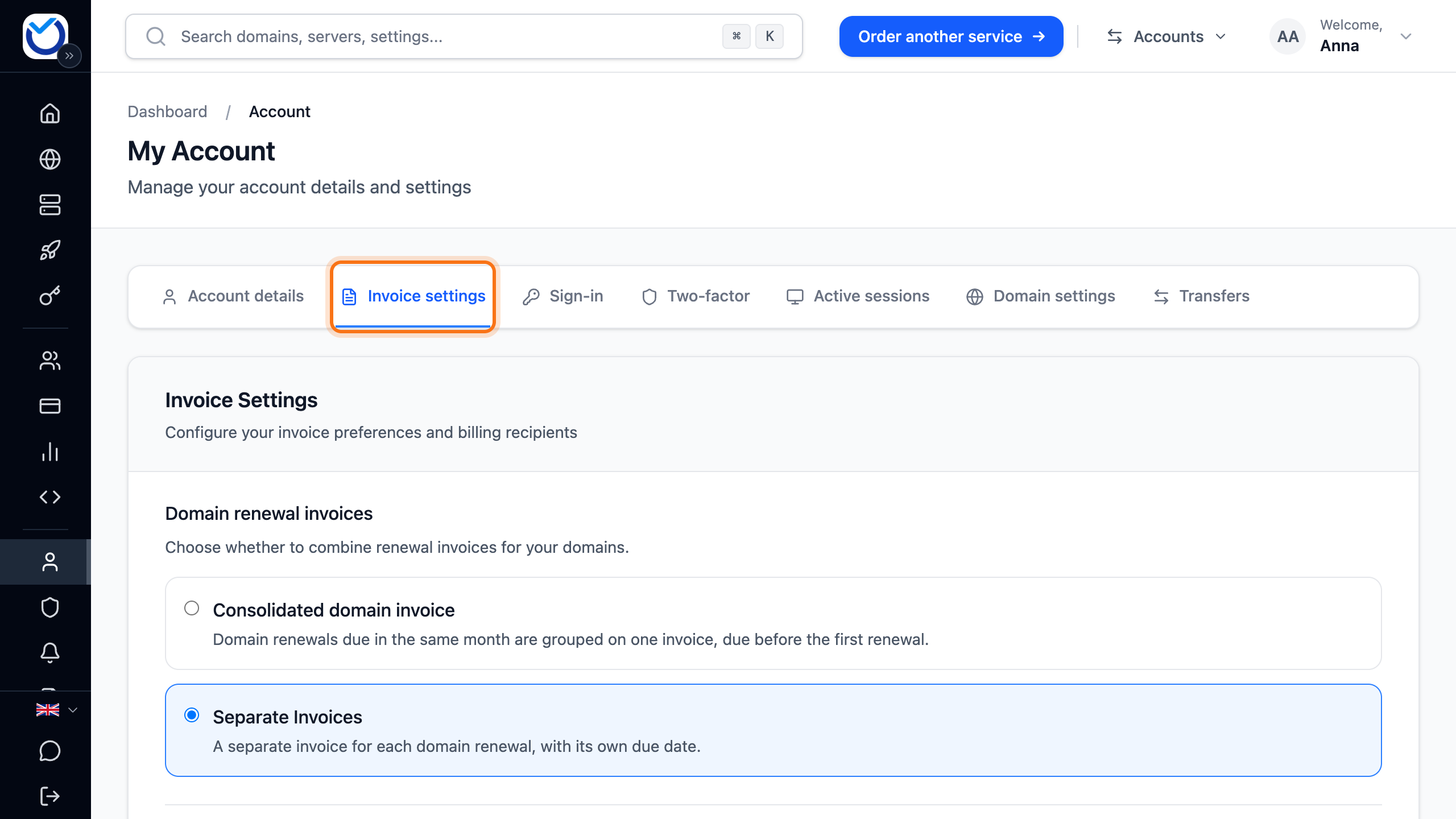
- Scroll down to E-invoices (Peppol) at the bottom of the page.
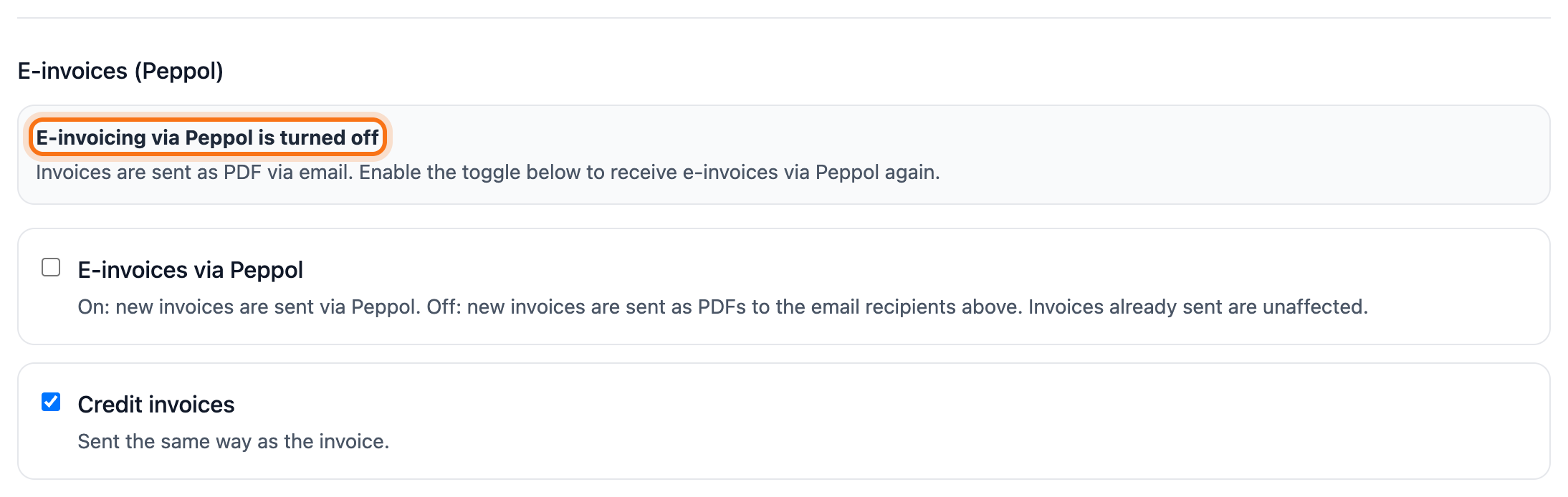
The box shows one of these messages:
- E-invoicing via Peppol is active. Invoices go to your accounting system.
- E-invoicing via Peppol is turned off. You have turned e-invoicing off. Invoices are sent as PDF by email.
- Invoices are sent as PDF via email. Your company does not receive e-invoices via Peppol yet. You turn that on in your accounting software. After that, invoices are sent as e-invoices.
- Could not check Peppol status. Click Check again.
Turn e-invoicing off or on
Section titled “Turn e-invoicing off or on”If you would rather get invoices as PDF by email:
- Go to E-invoices (Peppol) on the Invoice settings tab.
- Untick E-invoices via Peppol. The change is saved straight away.

New invoices are then sent as PDF to the email recipients. Invoices already sent are not affected. Tick E-invoices via Peppol again when you want e-invoices.
The option only shows when your company receives e-invoices via Peppol.
Credit invoices
Section titled “Credit invoices”A credit invoice is sent the same way as the invoice it belongs to. If you do not want credit invoices sent automatically, untick Credit invoices under E-invoices (Peppol). You can still download them under Billing.
What happens next
Section titled “What happens next”When you open an unpaid e-invoice under Billing, it is marked E-invoice. Pay it in your accounting system as usual. If you would rather pay in the client area, click Show payment options. Then do not pay the e-invoice.
The invoice email still goes out as usual. It says the invoice has been delivered to your accounting system. To choose which addresses get invoice emails, see Send invoices to your finance team or another email.
If you have a saved card and never chose automatic card payment yourself, it is turned off once your invoices go out as e-invoices. Otherwise the same invoice could be paid twice. If you still want the card charged, turn on Charge automatically on the due date under Billing on the Payment Methods tab.
Good to know
Section titled “Good to know”- Your reference (buyer reference) is included on the e-invoice. See Invoice settings.
- If the section shows Check the organisation number, the organisation number belongs to a different company than the one on the account. Correct the company details under Account details. Until they match, invoices are sent as PDF by email.
- Private customers and companies in other countries get their invoices by email.