
Turn the CDN on or off for your domain
Checked against the client area 29 October 2026
With the CDN, traffic to your website goes through Cloudflare before it reaches the web server. On the way, Cloudflare’s cache is used. The security filters stop automated attacks and junk traffic. If the domain uses our current nameservers, it is already connected. Otherwise you connect it on the CDN page in the client area.
Open the CDN page in the client area
Before you start
Section titled “Before you start”Every domain on the account is listed on the CDN page. That includes domains registered with us and domains that only have their DNS with us.
If the domain is missing from the list, click Add domain. Type the domain name without www and click Next. Choose how to connect the domain and click Next again. Add the TXT record shown at your DNS provider and click Verify. Once the domain is verified, carry on as below.
How to
Section titled “How to”- Click CDN in the menu. Under Domains you see each domain and its Status.
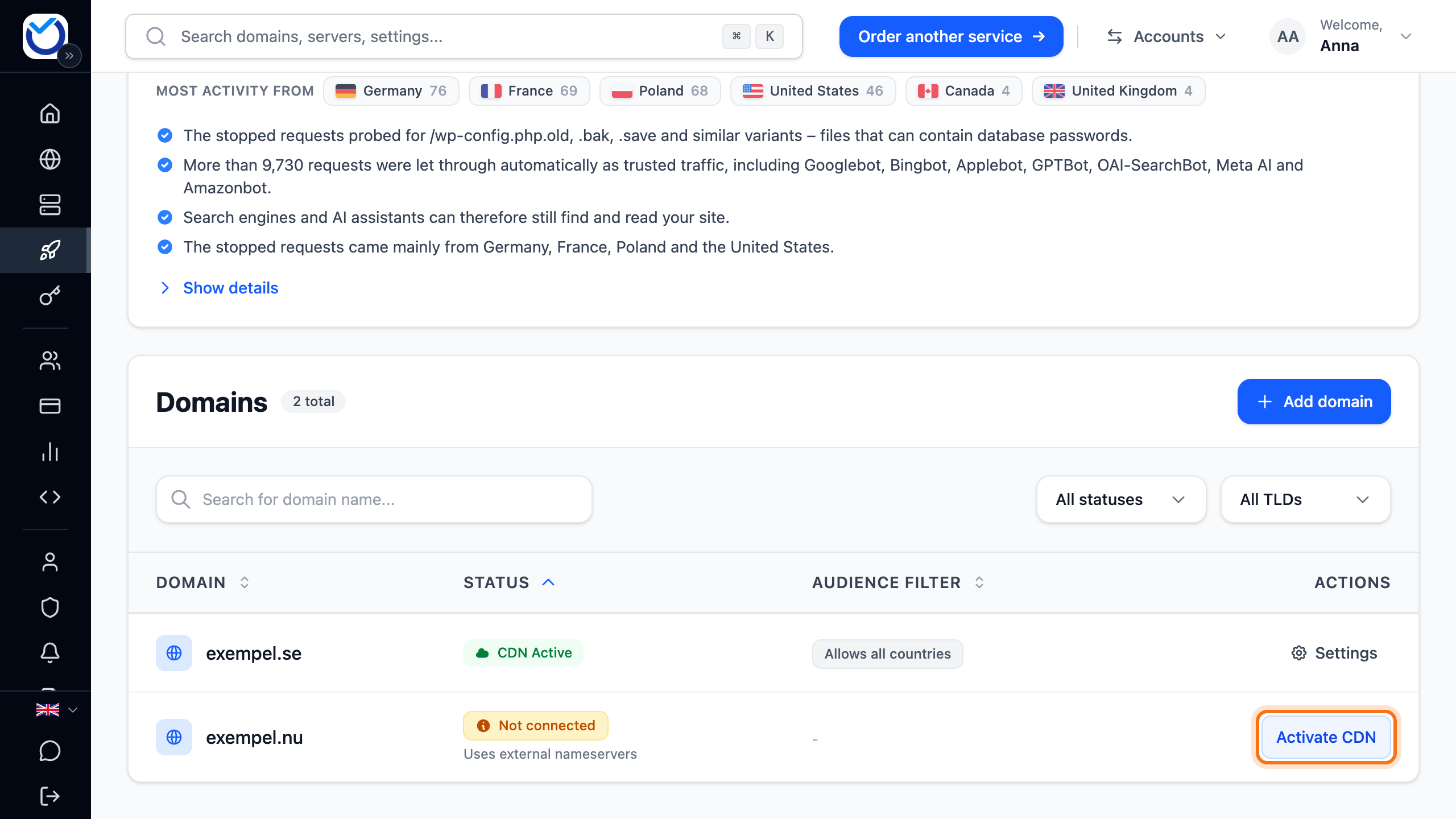
- CDN Active means traffic already goes through the CDN. CDN Disabled means it is switched off. Turn it on as described further down. Not connected means traffic does not go through the CDN. Sometimes a line below it says why, for example that the domain uses external nameservers.
- Click Activate CDN on the domain’s row.
- Choose Use HostUp nameservers. To keep your current DNS provider, follow the steps under Keep your current DNS below.
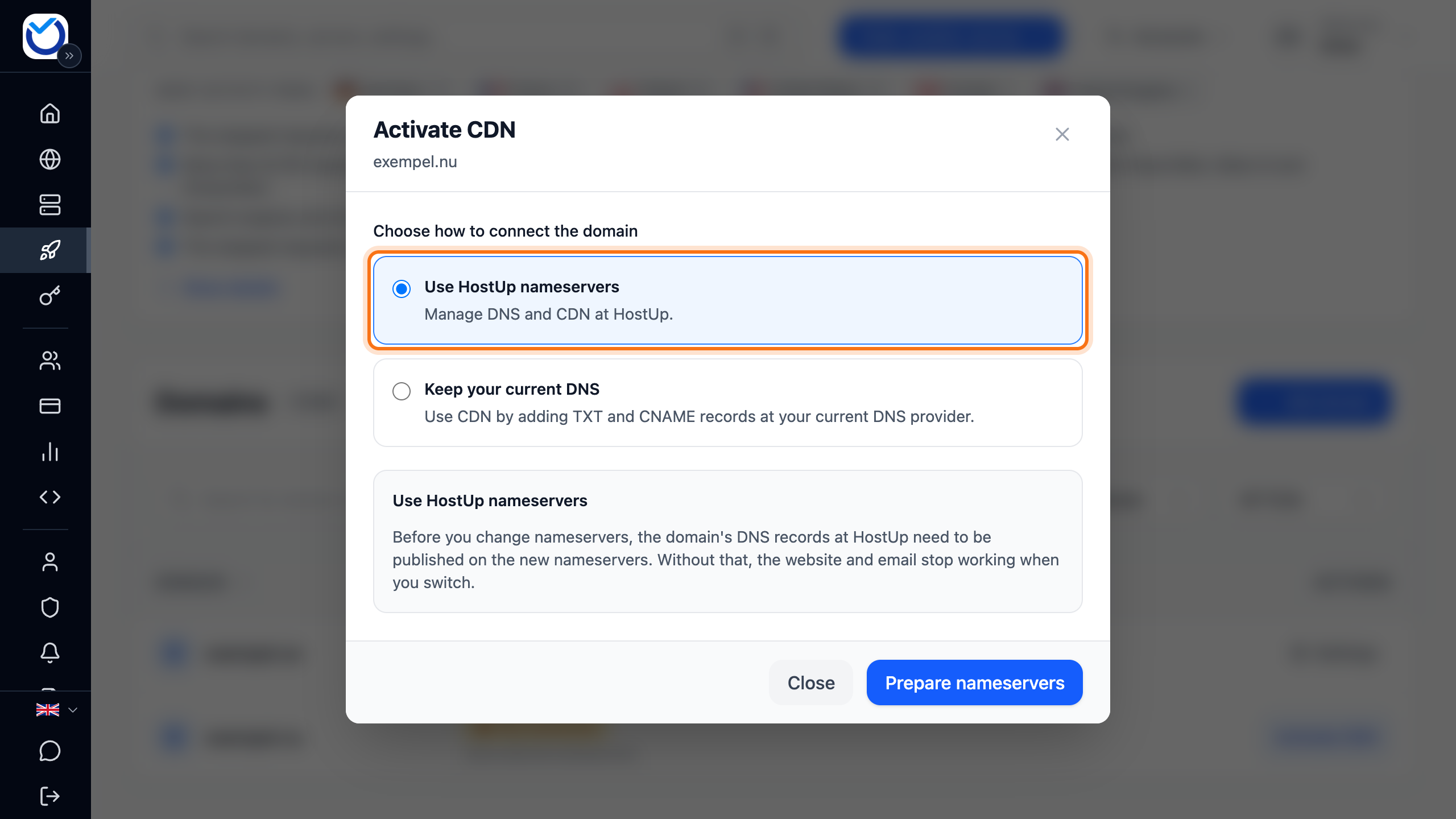
- If the Prepare nameservers button shows, click it. This puts the domain’s DNS records on our nameservers before you switch. It usually takes one to two minutes. The dialog tells you when the nameservers are ready. You can close it and come back.
- Check that the records for your website, email and everything else are on the domain’s DNS Management tab. If the domain is under External domains on the Domains page, its records show as soon as you click it. If anything is missing, add it as described in Add, change and delete DNS records.
- Change the nameservers. If the domain is registered with us, click Open nameserver settings. If it is registered elsewhere, the dialog shows which nameservers to enter with that provider. See Change the nameservers for your domain.
What happens next
Section titled “What happens next”Once the domain points at our nameservers, the list shows CDN Active next to it. A nameserver change can take a while to take effect.
You choose which addresses go through the CDN for each DNS record. See CDN settings: proxy per record, HTTPS and cache.
Keep your current DNS
Section titled “Keep your current DNS”If you don’t want to change nameservers, you connect the domain with a few DNS records at your current DNS provider.
- Click Activate CDN on the domain’s row and choose Keep your current DNS.
- Under Choose hostnames, choose whether the domain itself, www or both go through the CDN. If you choose only www, the domain itself is not changed.
- Click Prepare DNS instructions.
- Under Verify the domain you get a TXT record with a type, name and value. Add it at your DNS provider and click Check DNS. Keep the website’s current records until the domain is verified.
- Once the domain is verified, Connect the website shows one record for each address. Change those records at your DNS provider exactly as shown. Leave the email records and all other records as they are.
- Click Check DNS again.
The HTTPS certificate can only be issued once the records are changed. Until then the website may have no HTTPS. The dialog shows how far it has got, for example Certificate is being prepared. When everything is done it says CDN is active.
You can close the dialog and continue later. Click Continue setup on the domain’s row.
Turn the CDN off or back on
Section titled “Turn the CDN off or back on”- Click Settings on the domain’s row. On a phone, tap the domain.
- Click CDN connection at the bottom of the dialog.
- Untick Use CDN to turn it off. Tick it to turn it back on.
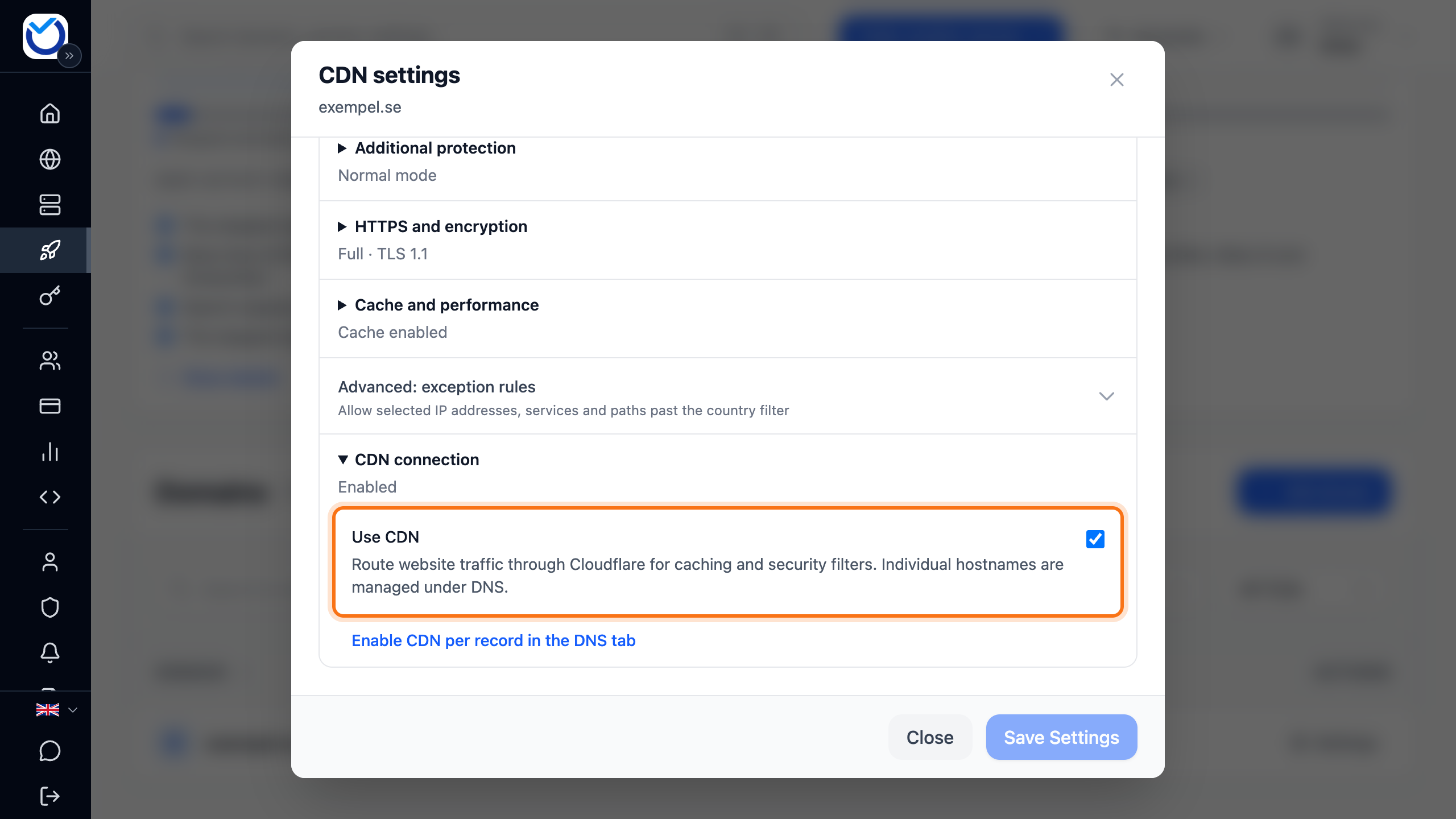
- Click Save Settings. When you turn it off, the client area asks first. Click Disable CDN and save.
With the CDN off, web traffic goes straight to the web server. The CDN then no longer protects the website: neither the cache nor the security filters are used for that traffic. The list shows CDN Disabled. Your security and cache settings are kept and apply again when you turn the CDN back on.
Good to know
Section titled “Good to know”- If the list says the domain uses our older nameservers, switch to the new ones the same way as in steps 3–7. The older nameservers have no CDN.
- If the domain has expired, the row shows Expired and no Activate CDN button. Renew the domain first.
- You connect the whole domain, not a subdomain. With our nameservers, you then choose per DNS record which subdomains go through the CDN.
- To stop traffic from certain countries or bots, see Block countries, bots and IP addresses with the CDN.