
Pay an invoice by card, Swish or Bankgiro
Checked against the client area 29 October 2026
Your invoices are under Billing in the client area. You pay them there by card, Swish, Bankgiro or with credit you have on the account. Which options you get depends on the invoice currency and the country the account is registered in.
Open your invoices in the client area
How to
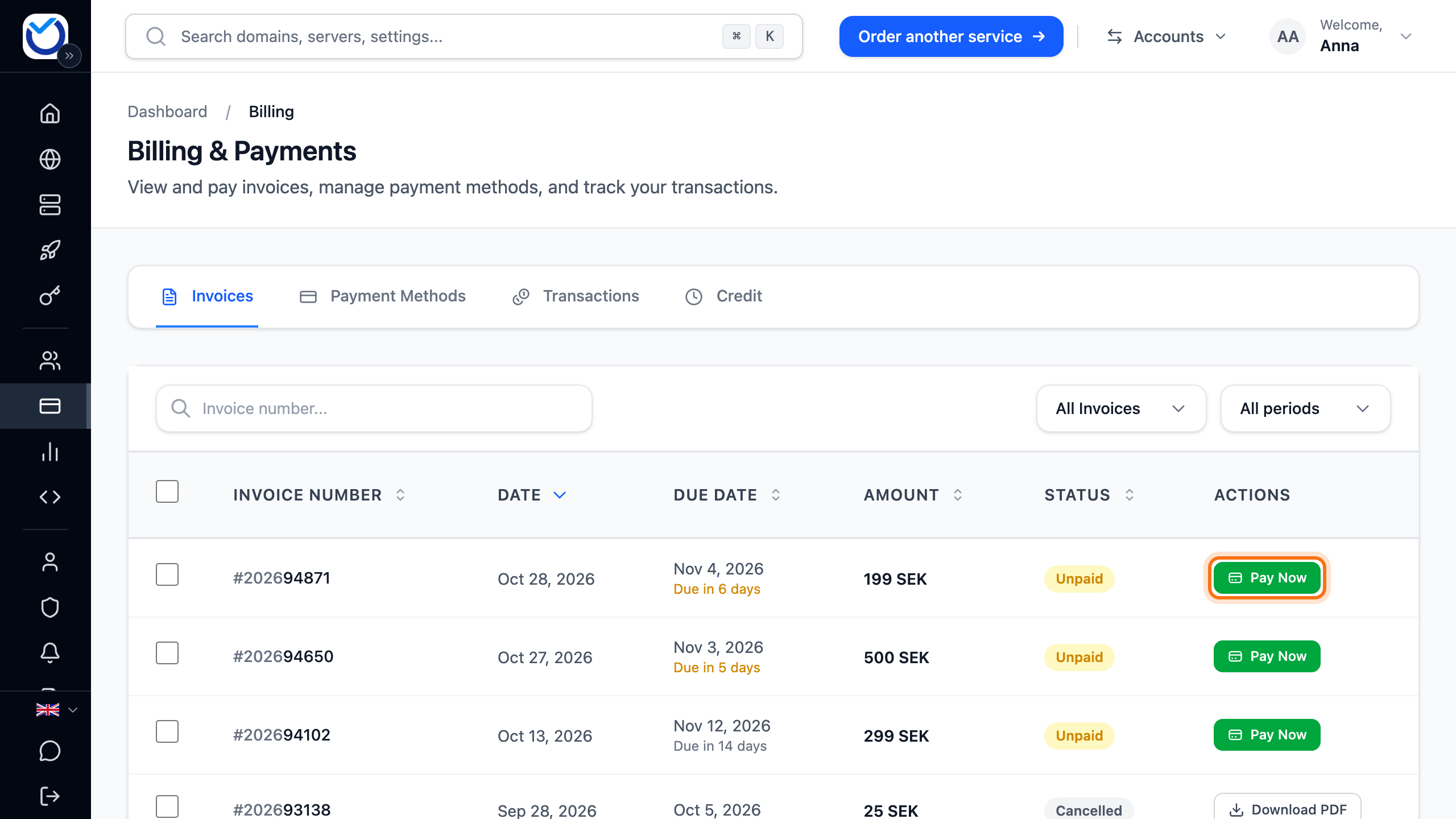
Section titled “How to”- Click Billing in the menu. The Invoices tab opens.
- Click Pay Now on the invoice’s row. On a phone, tap the invoice.
- The invoice opens. Amount to pay is shown at the top. Choose how to pay:
- Pay with Swish: on a phone, tap Open the Swish app. On a computer, scan the QR code with the Swish app.
- Pay with card: if you have a saved card, it is charged as soon as you click. The card is shown under the button. Without a saved card you go to a secure page where you enter the card details.
- Bankgiro: pay from your online bank to the number next to Bankgiro Number. Enter the invoice number as the message. It is shown next to Message. If your bank only has an OCR field, enter it there.
- Apply account credit: shown when you have credit on the account. See the next section.
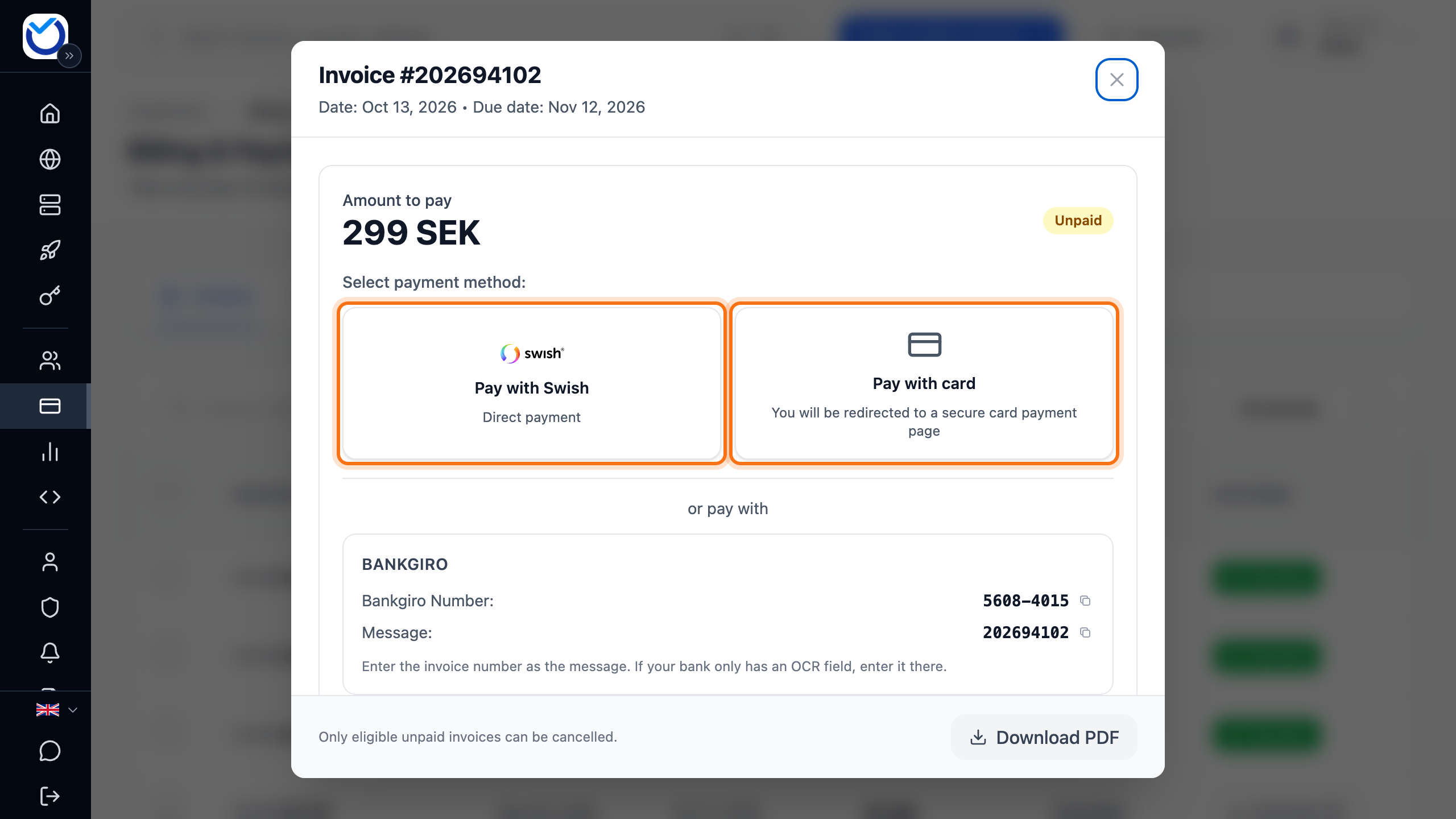
Swish and Bankgiro are available for invoices in SEK on accounts in Sweden.
Pay with account credit
Section titled “Pay with account credit”- Open the invoice and click Apply account credit. The amount you can use is shown under the button.
- The Credit amount field is already filled in with the highest amount possible. Enter a lower amount if you only want to use part of your credit.
- Click Apply credit.
If the credit does not cover the whole invoice, pay the rest with one of the other options. Credit can only be used on invoices in the account’s currency. To add money to the account, see Top up your account credit.
Pay several invoices at once
Section titled “Pay several invoices at once”When you have several unpaid invoices and all of them are in the same currency, the Invoices tab shows a blue box with the total. Click Pay all. You choose card or Swish in the next step.
To choose which invoices to pay:
- Tick the invoices in the list. Pick at least two, all in the same currency.
- Click Pay together in the box at the bottom.
- Check the total. Click Pay by card or Pay with Swish.
You pay the whole total in one payment. By card, you go to the page where you enter the card details. Swish only shows when every selected invoice can be paid with Swish.
Pay by bank transfer in EUR
Section titled “Pay by bank transfer in EUR”Bank transfer is available for invoices in EUR.
- If the invoice is in EUR, click Pay by SEPA bank transfer. The next step gives you the bank details for the transfer.
- If the account is registered outside Sweden and the invoice is in another currency, the Bank transfer box is greyed out. Switch the account to EUR first.
- Click Switch to EUR and get a new invoice in the Bank transfer box.
- The Pay by bank transfer in EUR dialog shows the invoice’s new amount in EUR. If you have more unpaid invoices, they are listed there too. They are replaced the same way. Read it through.
- Click Switch to EUR.
The account currency becomes EUR. The invoice is cancelled and replaced by a new invoice in EUR for the same period. Future invoices and prices are in EUR as well. The new invoice opens straight away. Pay it with Pay by SEPA bank transfer or by card.
Download the invoice as a PDF
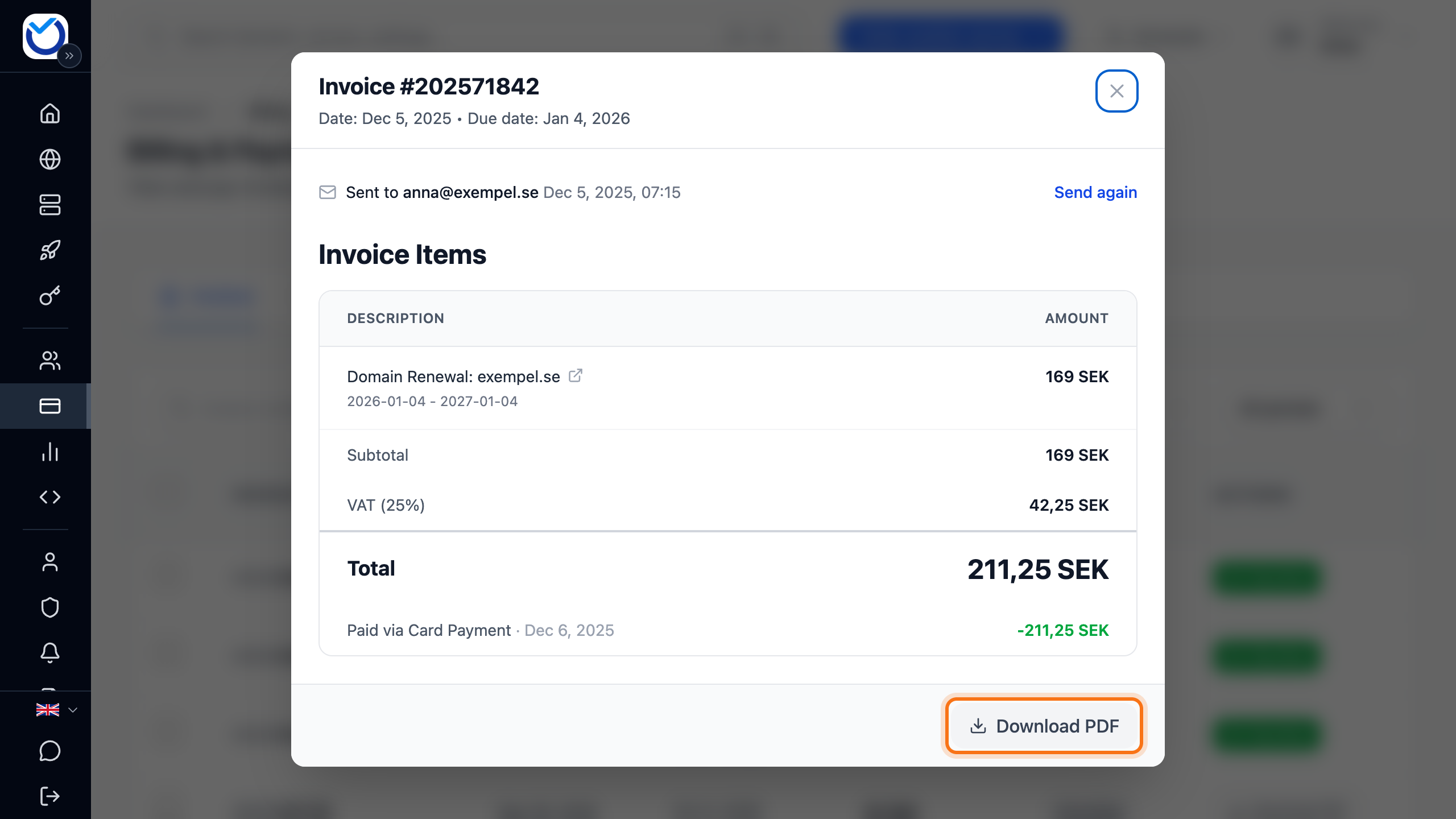
Section titled “Download the invoice as a PDF”- Open the invoice and click Download PDF at the bottom. This works for every invoice, unpaid ones included.
- A paid invoice can also be downloaded with Download PDF right on its row in the list.
- For several invoices, tick them and click Export as PDF. Each invoice is saved as a separate file.
- If there is a credit note, Credit note shows on the invoice’s row.
What happens next
Section titled “What happens next”Card and Swish payments register right away. The invoice turns Paid. After a card payment the invoice may show Confirming your payment… for a short while. Do not pay again. Bankgiro payments normally register the next banking day.
If the invoice was for a new order, the order starts once the invoice is paid. You can follow it on the Dashboard.
If the invoice still shows as unpaid, see Invoice shows as unpaid although you paid.
Good to know
Section titled “Good to know”- When the account owner pays with a new card, the card is saved on the account and becomes the default card. Read more in Payment cards and automatic payment.
- If the amount is too small for a card payment, the invoice shows Card payment unavailable. Pay another way then, for example with account credit.
- Someone else paying, such as your accounts department? Open the invoice and click Share payment link with someone else. Click Generate Payment Link and send them the link. Anyone with the link can pay without logging in.
- If you receive your invoices as e-invoices, no payment options are shown at first. To pay in the client area anyway, click Show payment options. Then do not pay the e-invoice as well.
- If an older invoice is overdue, the new invoice says so at the top. The new invoice does not replace the older one. Both need to be paid.