
Change the IP address of your VPS
Checked against the client area 29 October 2026
You can swap your server’s public IP address for a new one from our pool. This works for both IPv4 and IPv6. If you want to keep the old address, you can hold on to it on your account and assign it to another server.
Open your servers in the client area
How to
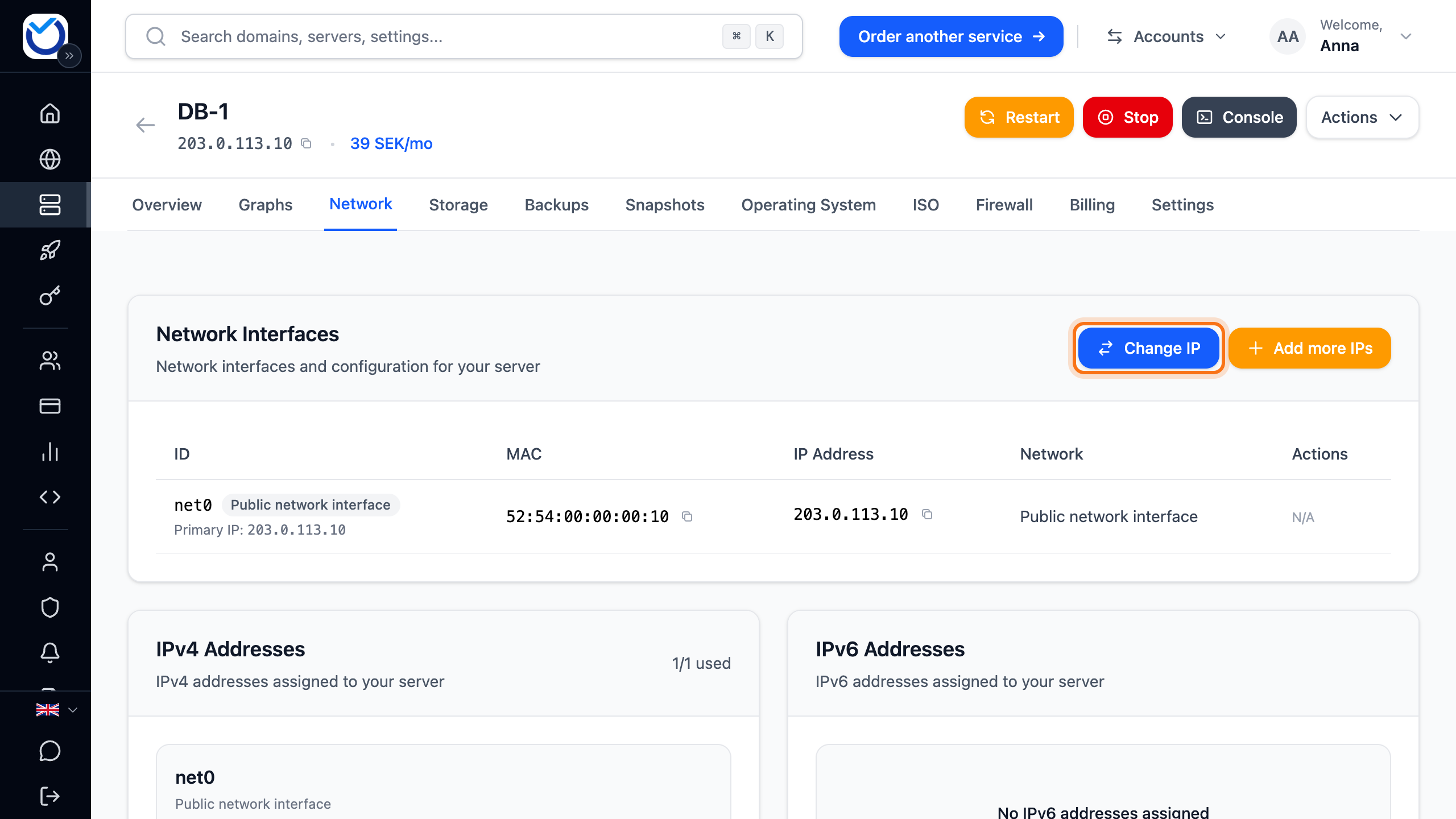
Section titled “How to”- Open the server in the client area and go to the Network tab.
- Click Change IP in the Network Interfaces box.
- If the server has more than one public network interface, the dialog opens on Select interface. Pick the interface that gets the new address.
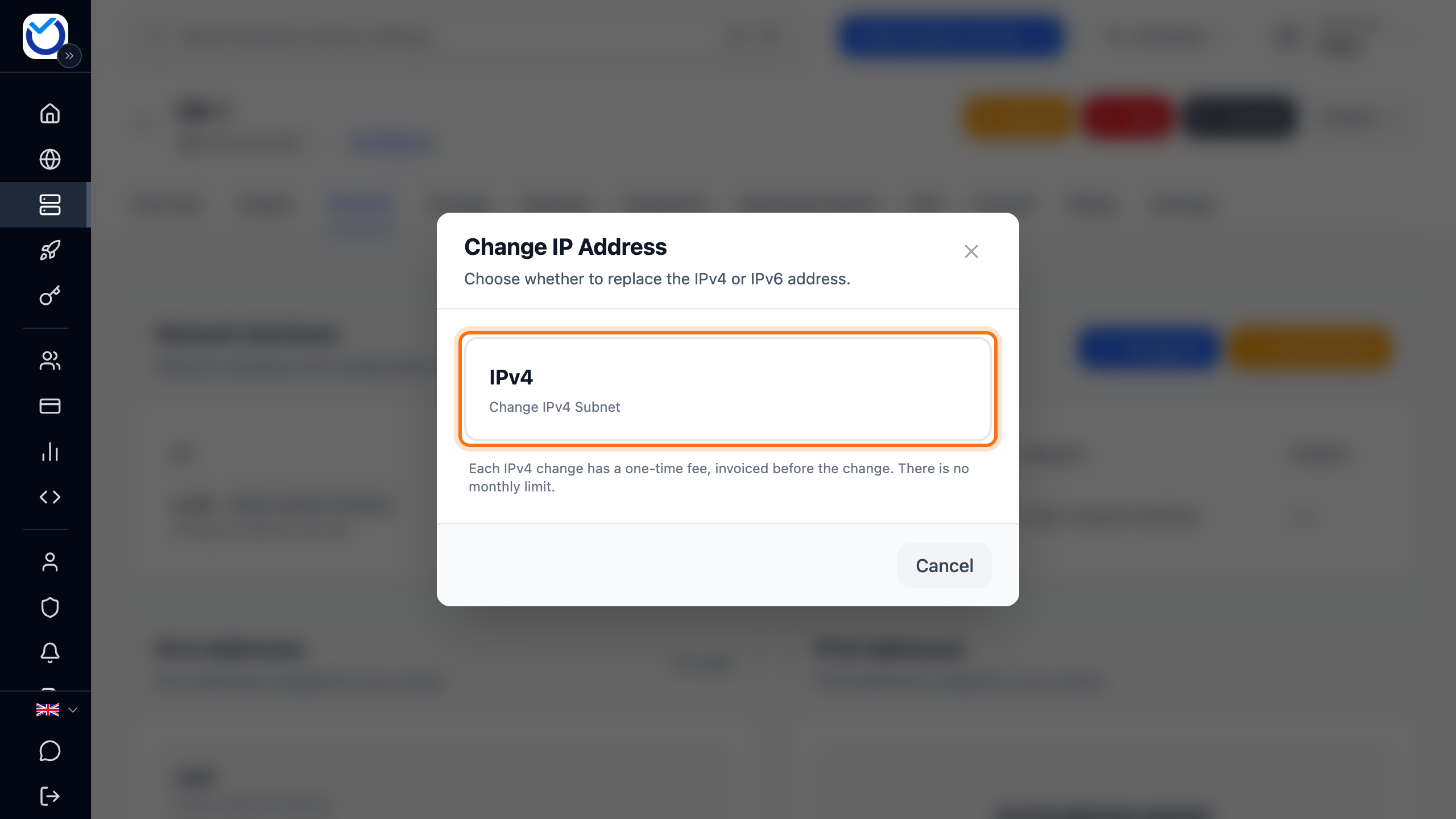
- Click IPv4 (Change IPv4 Subnet) or IPv6. IPv6 is only offered if the network interface has an IPv6 address. If the interface has both IPv4 and IPv6, the IPv6 address can only be changed within the current network. Below the buttons it says whether changing the IPv4 address costs anything. Changing the IPv6 address is free.
- Pick a network under Select network. The option marked Keeps current network keeps the server on the same network. Each network shows how many available IPs it has.
- Pick an address and click Continue. If there is only one free address, it is already selected.
- To keep the old address, tick Keep the old public IP reserved.
- Check the price on the One-time IP change line. If it says Free, click Change IP. If the change costs something, the button says Continue to payment.
What happens next
Section titled “What happens next”A free change happens straight away. The new address replaces the old one on the Network tab. On some servers the server restarts automatically. In that case the dialog shows The VM will restart automatically before you confirm.
If the change costs something, an invoice is created and you are taken to it. The change happens once the invoice is paid. Until then the Network tab shows IP change awaiting payment. It also has a Pay invoice button. The new address is held for you until the time shown there. If you do not pay in time, the invoice is cancelled and the address is released. The server then keeps its old address.
Next, update any DNS records that point to the old address. If you use reverse DNS, set it for the new address. See Set up reverse DNS (PTR).
If the tab shows Server IP configuration needs attention after the change, the server is not using the new address yet. Extra IP addresses and network interfaces explains what to do.
Good to know
Section titled “Good to know”- If you keep the old address, it ends up under Reserved Public IPs on the Network tab of the Dashboard. Assign it to another server there. A permanent reserved address that is not attached to a server has a fee. The price is shown in the same section. See Reserved IP.
- If your account cannot keep permanent reserved addresses, the old address is only kept for 4 hours. The text under the checkbox says so.
- If you move the IPv4 address to another network, the server’s IPv6 address on the same interface is removed. The dialog warns you before you confirm. Pick Keeps current network to keep it.
- If the server was recently hit by a DDoS attack, IPv4 changes are paused for a while. The dialog then shows IPv4 changes are paused and until when.
- Only one change at a time can wait for payment. If you start a new change before the invoice is paid, you can choose Cancel the pending change and continue. The new change then replaces the old one.