
Firewall for your VPS: open ports and turn on protection
Checked against the client area 29 October 2026
The firewall in the client area stops incoming traffic before it reaches your VPS. You add a rule for each service that should be reachable, for example SSH or a website. When protection is on, only traffic that matches a rule gets through.
Open your servers in the client area
Before you start
Section titled “Before you start”Add a rule for whatever you log in with before you turn protection on. That is SSH (port 22) on Linux and Remote Desktop (port 3389) on Windows. Otherwise you lock yourself out.
How to
Section titled “How to”- Open the server in the client area and go to the Firewall tab.
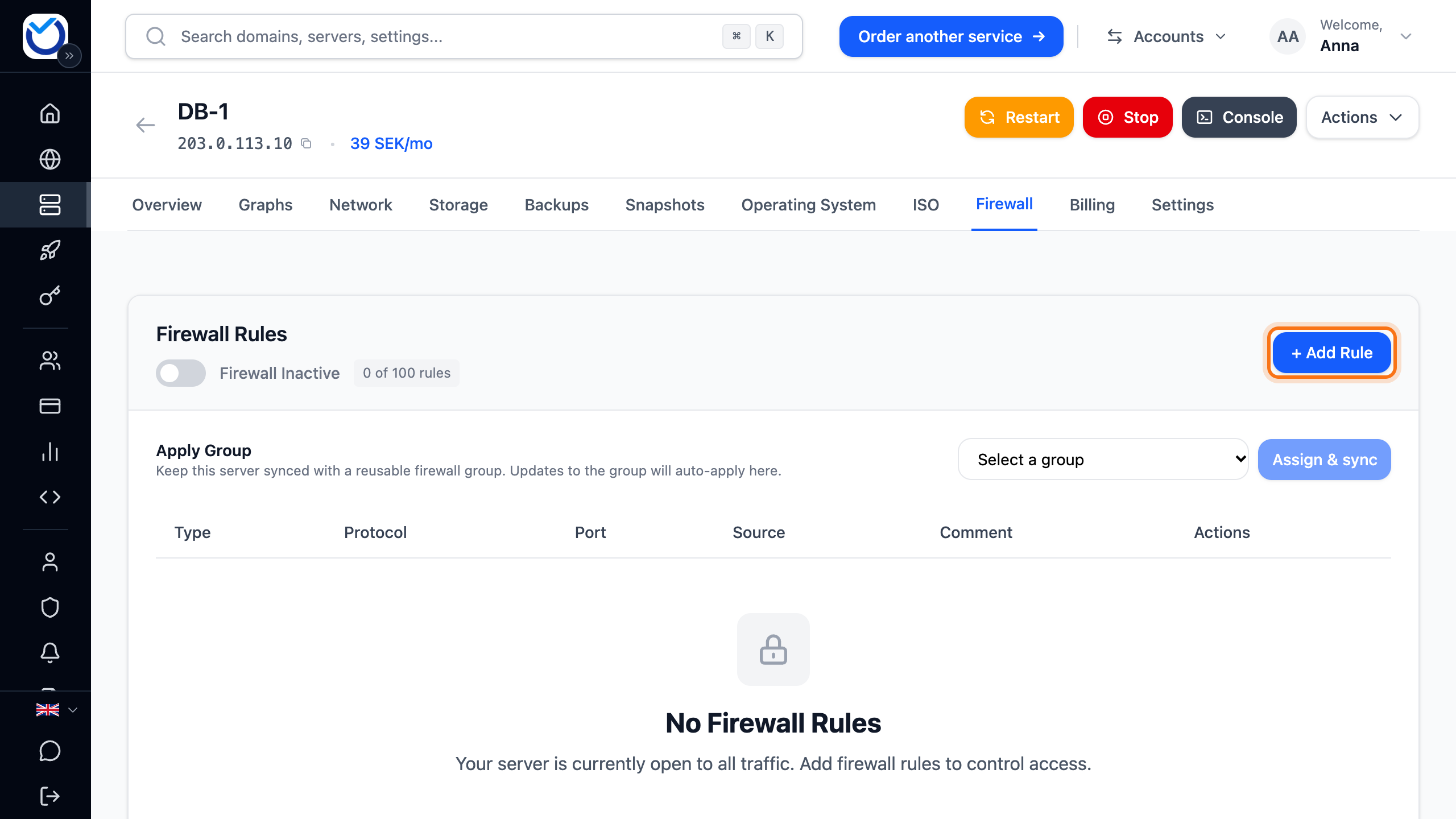
- Click + Add Rule.
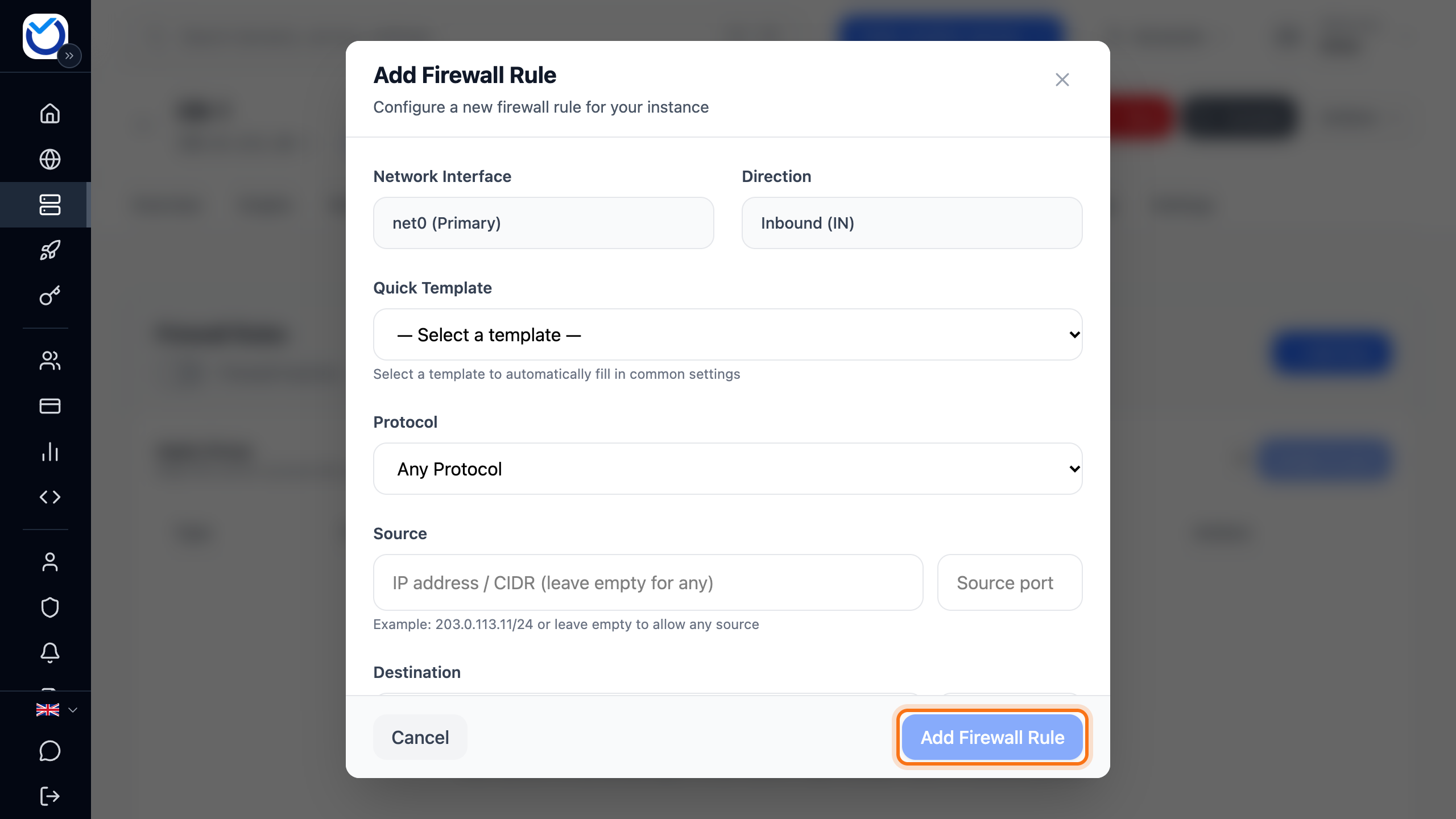
- Pick the service under Quick Template, for example SSH or web. The protocol and port are filled in for you.
- If the service is not among the templates, choose the Protocol. Enter the port in the Port field under Destination. Write several ports as 80,443 and a range as 1000-2000. Ports only work with TCP or UDP.
- To let in only certain addresses, enter them under Source as an IP address or a network such as 192.168.1.0/24. Empty means any. Leave Source port empty.
- Click Add Firewall Rule. Do the same for each service the server should be reachable on.
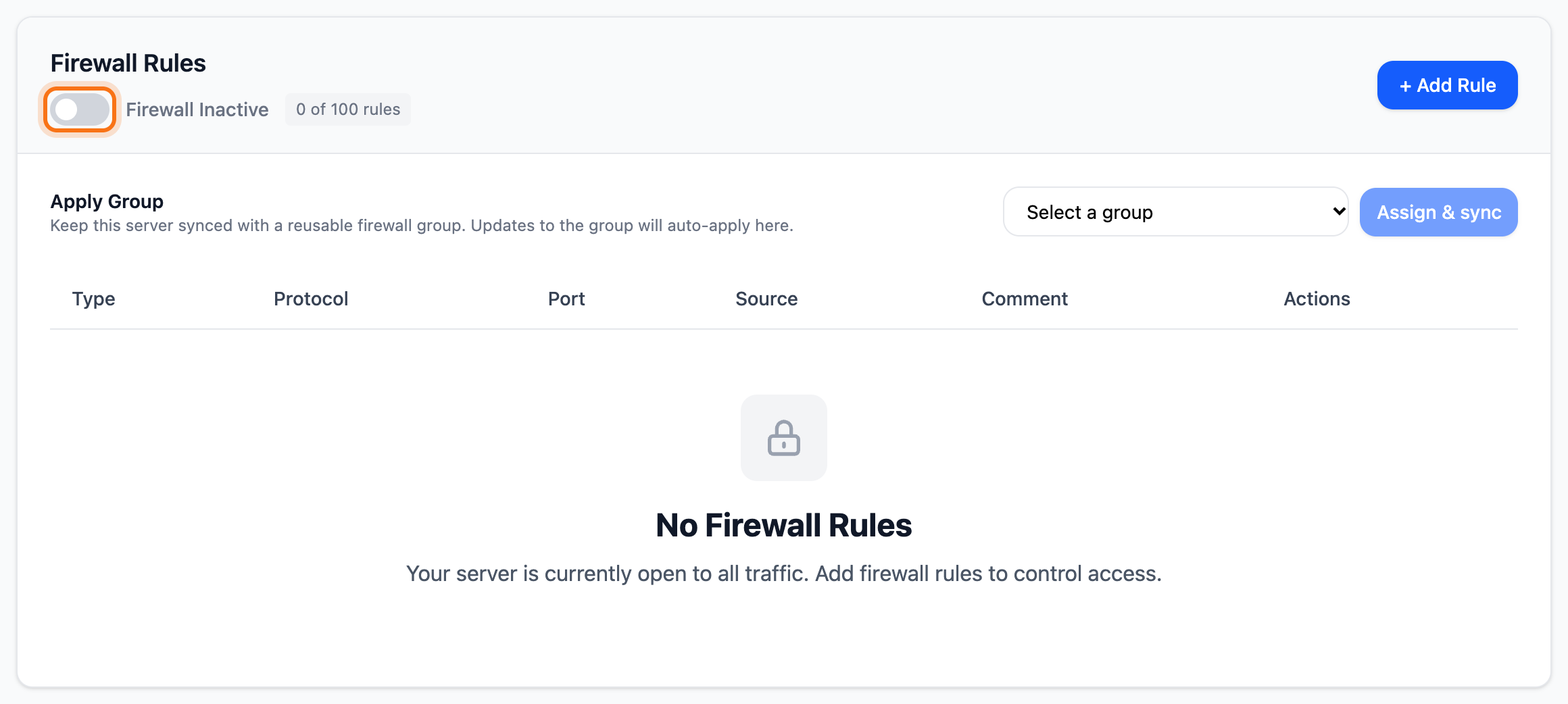
- Click the switch next to Firewall Inactive to turn protection on.
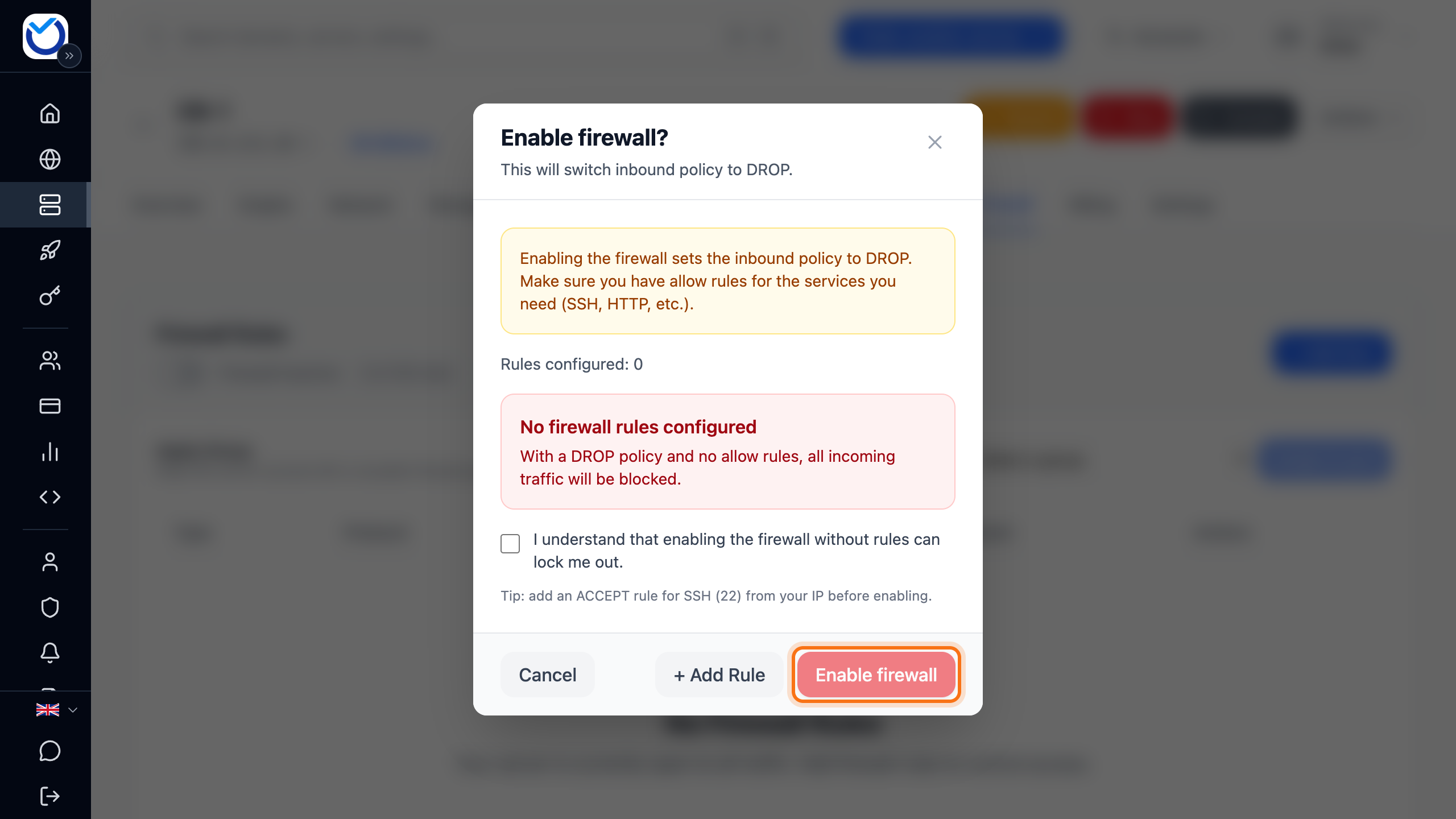
- The Enable firewall? dialog shows how many rules you have. Click Enable firewall.
What happens next
Section titled “What happens next”The switch now reads Firewall Active. Traffic that does not match one of the rules is stopped on our side before it reaches the server. The firewall only covers incoming traffic.
If you have no rules when you turn protection on, all incoming traffic is stopped. The dialog then asks you to confirm that you understand this before the button can be clicked.
Good to know
Section titled “Good to know”- If you can’t reach the server after turning protection on, click the switch again. Protection turns off without any question. Add the missing rule and turn it back on.
- Your rules stay in place while protection is off.
- Change a rule with Edit and remove it with Delete.
- The number of rules per server is limited. The counter next to the switch shows how many you have used.
The same rules on several servers
Section titled “The same rules on several servers”If several servers should have the same rules, you can collect them in a firewall group.
Open the firewall groups in the client area
- Go to Dashboard and the Security tab. It is the tab above the server list, not Security in the menu. Click Create Group.
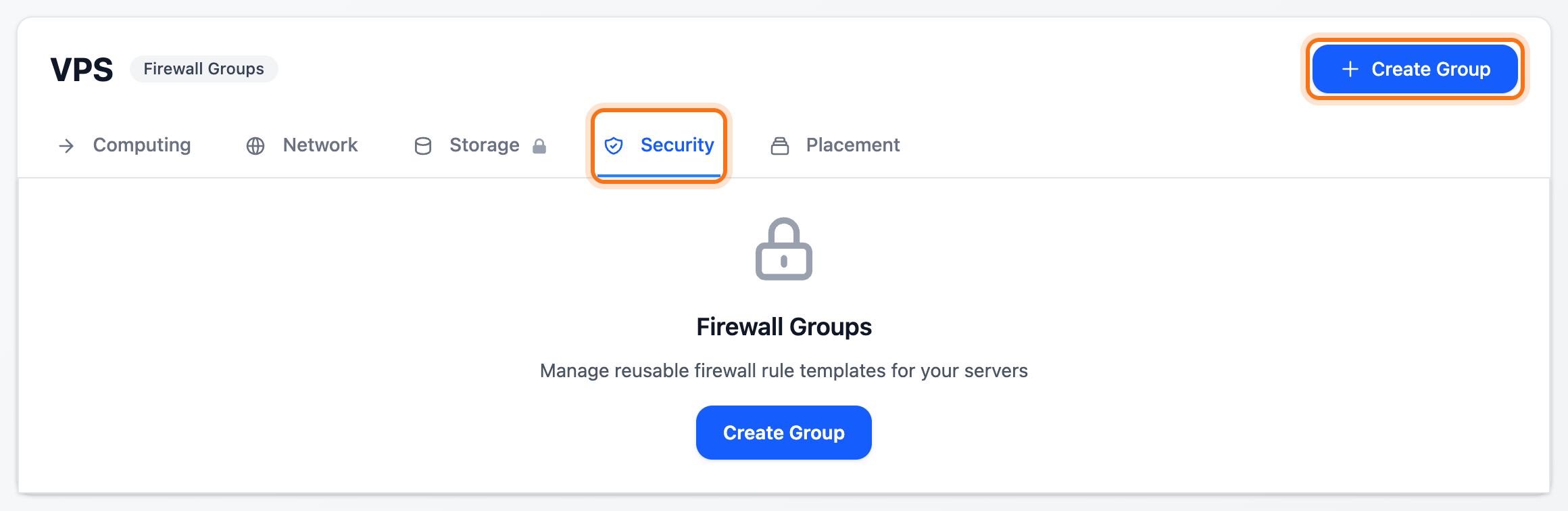
- Enter a name under Group Name.
- Click Add Rule. Fill in the rule the same way as above and click Add Rule below it. Do the same for each rule.
- Click Create Group.
- Open the server and go to the Firewall tab. Choose the group under Apply Group and click Assign & sync.
The group’s rules are added to the server’s own rules. This does not turn protection on. If the switch is off, turn it on as in step 7 above.
- If you add a rule to the group later, it is added on every server that has the group.
- If you remove a rule from the group, it stays on the servers. Remove it on each server.
- If you remove the group from a server with Remove, its rules stay on the server.
- A group that a server uses cannot be deleted. Remove it from the servers first.