
Register a new domain
Checked against the client area 29 October 2026
When you find an available domain name, you register it in the client area. The domain lands in your account, and that is where you manage its DNS, email and renewal.
Search for an available domain
How to
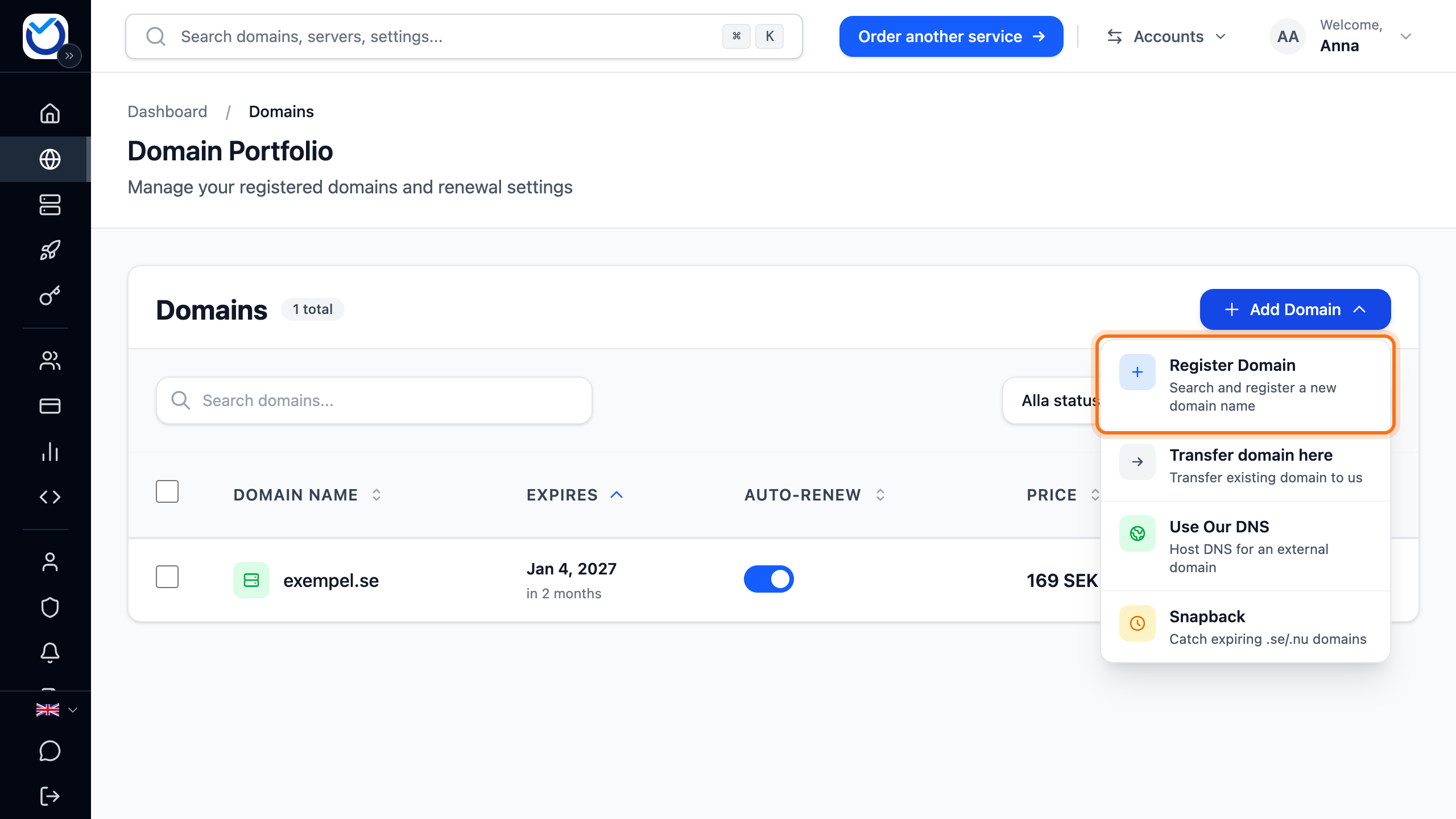
Section titled “How to”- Click Domains in the menu. Click Add Domain and choose Register Domain. On a phone it is the round plus button at the bottom right.
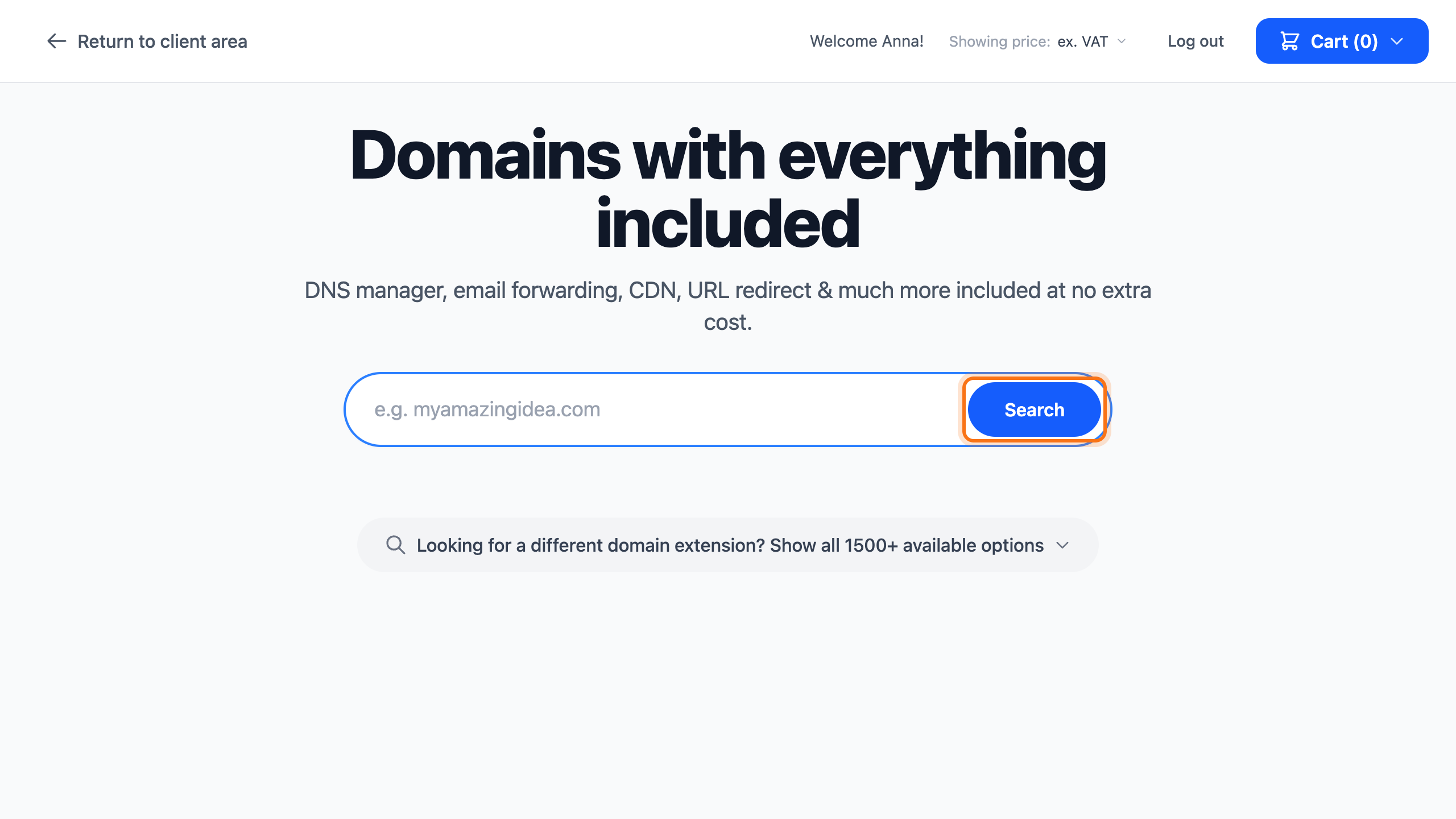
- Type the name you want and click Search. The search shows the name with several domain extensions.
- If the name is available, the search shows its price and the Add button. Click it. If the name is taken, the search suggests a few available alternatives.
- Click Continue to cart.
- Choose how many years to register the domain for under Period. The cart shows the price for the period.
- Click Go to checkout.
- Check your details at checkout. A phone number is required to register a domain.
- Tick the boxes for the terms. The right of withdrawal does not apply to a domain registration. Checkout asks you to confirm that.
- Click Continue to payment and pay.
.se and .nu domains
Section titled “.se and .nu domains”A .se or .nu domain is registered to a person or a company with a personal ID number or organisation number. By default your account details are used.
- If you are a private person, checkout asks for your personal ID number. If you have verified yourself with BankID, it is not needed.
- If the domain should be held by someone else, for example your company or a client, click Registering the domain for someone else? in the cart. Choose Individual or Company/organization. Then fill in the holder’s name, email, phone number, address and personal ID or organisation number.
- At checkout, tick that you accept the registration terms for .se domains or the registration terms for .nu domains.
What happens next
Section titled “What happens next”The domain is only registered once the invoice is paid. Until then, someone else can still register the name.
The domain shows under Domains. While the registration is in progress, the domain’s overview says Registration request sent. Some domain extensions need an extra confirmation by email before the domain is activated.
If the registration stops, for example because a personal ID number is missing, the domain’s page shows what needs fixing. Correct it and click Try Again.
For international domains such as .com, the domain’s contact person has to confirm their email address. Click the link in the email. Until that is done, the DNS Management tab shows Email Verification Required. You can send the email again from there with Resend Email.
Good to know
Section titled “Good to know”- New domains have auto-renewal switched on. Read more in Renew your domain.
- If we do not offer a domain extension, the search shows Not supported yet. You can ask us to add it.
- To start using DNS records with us right away, read Add, change and delete DNS records.